Phone Screen Flickering? Find the Cause and Fix It Fast
Published: 25 Oct 2026
Phone screen flickering can happen because of software bugs, faulty apps, automatic brightness settings, charging problems, or a damaged display. You may notice the screen flashing, changing brightness repeatedly, or briefly going black. However, this does not always mean you need a new screen. Simple troubleshooting steps may resolve the problem.
In this guide, we’ll explain why your phone screen is flickering and walk you through safe fixes for Android and iPhone. We’ll also cover what to do if the problem starts after a drop and when to seek professional repair.
What Is Phone Screen Flickering?
Screen flickering is an unwanted, repeated change in your screen’s brightness or image. It can look like rapid flashing, pulsing brightness, or the picture briefly disappearing and returning. It may affect the whole screen or just part of it, either occasionally or continuously.
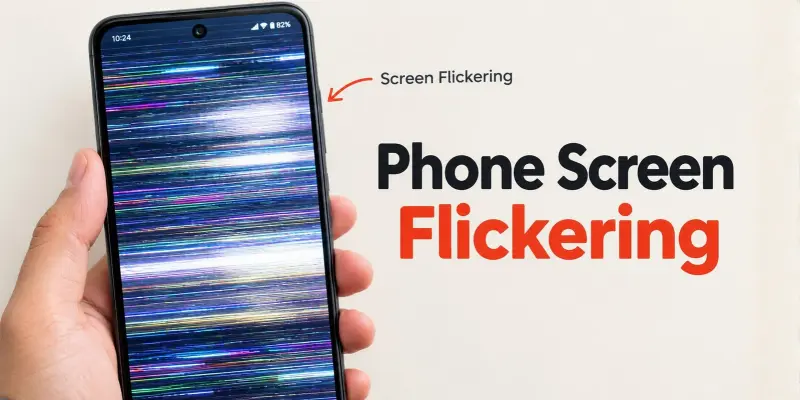
A gradual brightness adjustment when you move between bright and dark surroundings is usually normal. Repeated flashing in steady lighting may indicate a problem, but flickering alone cannot tell you whether the cause is software or hardware.
Common Causes of Phone Screen Flickering
The cause of screen flickering may lie in your phone’s apps and settings or in physical components such as the display and its connections. Here are the possible causes in each category.
Software and Display-Setting Causes
- System software bugs: A bug in the operating system can cause flashing or interruptions in the displayed image, sometimes after an update.
- Faulty or incompatible apps: An app that is not working properly may cause flickering while you use it. If other apps look normal, an app-specific issue is more likely.
- Automatic brightness: Repeated brightness adjustments can look like flickering, particularly when the surrounding light changes.
- Refresh rate settings: On some phones, flickering may appear at a particular refresh rate—the rate at which the display updates its image.
Hardware and Physical Causes
- Display damage: A drop or hard impact can damage the display beneath the outer glass, even if there are no visible cracks. This damage may cause flickering, colored lines, or dark patches on the screen.
- Loose or damaged display connections: Internal cables carry signals between your phone and its screen. If a cable becomes loose or damaged, these signals may be interrupted, causing the screen to flicker or briefly go blank.
- Charging or power problems: A faulty charger, damaged cable, or battery problem may disrupt the power your phone receives and cause flickering. If it happens only while charging, the charging setup is worth checking first.
OLED dimming is a separate possibility: Some OLED screens use rapid light pulses to control brightness. Certain people notice these pulses as flickering, especially at low brightness. This can happen even when the screen is working properly.
How to Fix a Flickering Phone Screen
Start with the check that matches when your screen flickers. Try one change at a time, then check whether it helped before moving to the next step.
| What you notice | What to check | Where to start |
|---|---|---|
| Flickering only in one app | An app-specific problem | Close, reopen, and update the app |
| Flickering at low brightness | Automatic brightness or display dimming | Test a fixed, moderate brightness |
| Flickering only while charging | The charger, cable, or power supply | Disconnect the charger and compare |
| Flickering after an update | A possible software issue | Restart and check for further updates |
| Flickering after a drop | Possible display or connection damage | Arrange a professional inspection |
| Flickering after liquid exposure | Possible moisture-related damage | Disconnect charging accessories and seek support |
| Flickering with persistent lines, dark patches, or touch problems | A possible hardware fault | Back up your data if safe, then have a technician check the phone. |
Let’s go through these steps in detail.
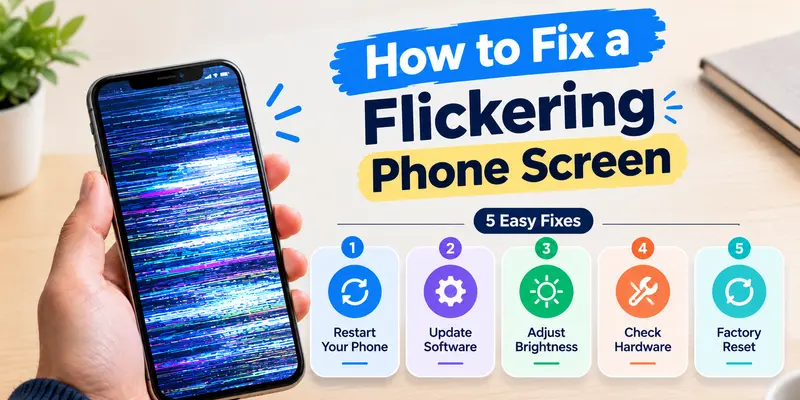
1. Restart Your Phone
A restart may clear a temporary software glitch. Start here if the flickering appeared suddenly and the phone has no signs of physical or liquid damage.
- Android: Open the power menu and tap Restart. The button combination varies by model.
- iPhone with Face ID: Hold the side button and either volume button until the power-off slider appears. Drag the slider, wait about 30 seconds, then hold the side button to turn the phone back on.
- iPhone 6, 7, 8, or SE (second or third generation): Press and hold the side button to bring up the power-off slider. Turn off your phone, wait around 30 seconds, and then turn it back on.
After restarting, use your phone normally. If the flickering returns, note which app or activity you were using.
2. Check Whether One App Is Causing the Problem
If flickering happens inside one app, open Settings and another unrelated app to compare. If those screens look normal, focus on the affected app first.
- Close the app completely and reopen it.
- Check the App Store or Google Play for an update.
- On Android, clear the app’s cache: Go to Settings → Apps → select the app → Storage → Clear cache. Menu names may vary by phone. Choose Clear cache, not Clear data or Clear storage, which can delete app data.
- If the problem continues, consider deleting and reinstalling the app.
Before deleting it, make sure any important app data is backed up and that you know your login details. Reinstalling can remove information stored only on the phone.
If only that app still flickers after these steps, contact its developer and explain when the flickering happens.
3. Check for System Updates
A software update may fix a display-related bug. It can also help resolve compatibility problems between apps and your phone’s operating system.
- Android: Search Settings for Software update or System update, then follow the instructions for your device.
- iPhone: Go to Settings → General → Software Update.
Back up important data before installing a system update and follow the onscreen requirements.
If flickering started after an update, check for a newer version that may include a fix. However, flickering after an update does not necessarily mean the update caused it.
4. Test Manual Brightness
If the screen flickers mainly at low brightness or keeps brightening and dimming, temporarily turn off automatic brightness.
- Samsung Galaxy: On many models, go to Settings → Display → Adaptive brightness and turn it off.
- Other Android phones: Search Settings for Adaptive brightness or Automatic brightness.
- iPhone: Go to Settings → Accessibility → Display & Text Size → Auto-Brightness and turn it off.
Set a comfortable, moderate brightness and check the screen in steady room lighting. If the flickering improves, automatic brightness or the way your display works at low brightness may be involved. However, this does not confirm that the screen is working normally.
You can restore automatic brightness afterwards if changing it makes no difference.

5. Check Whether Charging Triggers the Flickering
Only try this check if the phone and charging port are dry, the device is undamaged, and it is not unusually hot.
- Disconnect the charger and check whether the flickering stops.
- If it stops, try a compatible cable and power adapter that you know work properly.
- Try another suitable wall outlet. Change one item at a time to help identify what triggers the problem.
If flickering happens with only one charging setup, stop using it. If it continues with different compatible chargers and cables, the phone may need professional assessment.
6. Let an Overheated Phone Cool Down
If the phone becomes unusually hot during gaming, recording, navigation, or charging, pause the activity and disconnect the charger. Move the device away from direct sunlight and let it cool naturally.
If a temperature warning appears, turn the phone off. Avoid ice, freezers, or other sudden cooling methods.
An overheated iPhone may dim its screen or temporarily turn the display off to protect itself. Once the phone has cooled, check whether the display behaves normally again. If flickering continues at a normal temperature, keep investigating the other possible causes.

Android Screen Flickering: Additional Checks
If the basic fixes haven’t helped, try these Android-specific checks to see whether downloaded apps or refresh rate settings are involved.
Use Safe Mode to Check Downloaded Apps
Safe Mode temporarily disables downloaded apps so you can check whether one is contributing to the flickering.
On many Samsung Galaxy phones:
- Hold the side button and volume-down button until the power menu appears.
- Touch and hold Power off.
- Tap Safe mode.
On Pixel 6 and later:
- Hold the power and volume-up buttons until the power menu appears.
- Touch and hold Power off or Restart.
- Confirm the Safe Mode prompt.
For other Android phones, follow your manufacturer’s instructions.
Once your phone is in Safe Mode, check whether the screen still flickers during normal use. To leave Safe Mode, restart your phone normally.
If the flickering stops, a downloaded app may be involved. After leaving Safe Mode, remove recently installed apps one at a time, then restart and check after each removal. Back up any important app data before uninstalling.
If flickering continues in Safe Mode, you may need to investigate system software or hardware further. This alone does not prove that the screen needs replacement.
Test a Different Refresh Rate, If Supported
The refresh rate is how often your screen updates its image. Some Android phones let you choose between standard, higher, or adaptive refresh rates.
On supported Samsung Galaxy models, open Settings → Display → Motion smoothness. Select another available option, apply it, and check whether the flickering changes. Other brands may place this setting under Display → Refresh rate.
If changing it makes no difference, restore your preferred setting. If your phone doesn’t offer this option, skip this check.
iPhone Screen Flickering: Additional Checks
If the simple fixes have not fixed your iPhone’s screen flickering, move on to the next step.
Force Restart an Unresponsive iPhone
If your iPhone is frozen and you cannot restart it normally, try a force restart.
For iPhone 8 and later, including iPhone SE second and third generation:
- Quickly press and release Volume Up.
- Quickly press and release Volume Down.
- Hold the side button until the Apple logo appears.
Older iPhones use different button combinations. Follow Apple’s force-restart instructions for your model.
A force restart does not erase your stored data or reset the phone to factory settings.
If your iPhone responds again but still flickers, continue with the remaining checks. If the problem persists, contact Apple Support or a qualified repair provider.
Should You Factory Reset a Flickering Phone?
A factory reset may help if flickering is caused by an app or a software setting, but it is not a guaranteed fix. Consider it only after the earlier troubleshooting steps have failed and there are no signs of physical or liquid damage.
Before resetting your phone:
- Back up important photos, contacts, files, and app data. A factory reset erases data stored on the phone.
- Make sure you know your Google Account or Apple Account login details and your phone’s passcode.
- Follow your phone manufacturer’s reset instructions.
After the reset, complete the basic setup and check the screen before restoring your backup or reinstalling apps. This helps you see whether flickering occurs without your previous apps and settings.
If flickering continues, seek professional diagnosis instead of repeating the reset. A factory reset cannot repair a damaged display or loose internal connection.
When Should You Get Your Phone Screen Repaired?
Visit a repair center if flickering continues after trying the relevant fixes or appears alongside signs of physical damage.
Professional inspection is recommended when:
- Flickering keeps getting worse
- The problem started after a drop or water exposure
- Persistent lines, unusual colors, or dark patches appear
- The touchscreen stops responding properly
- The screen repeatedly goes blank
- The issue started after a previous screen repair
If the phone becomes unusually hot, the battery appears swollen, or the screen lifts away from the frame, stop using and charging it and seek professional help promptly.
Back up your important data before taking the phone for repair, if it is safe to use.
Contact the manufacturer, an authorized service center, or a trusted technician who offers a repair warranty. Ask them to identify the cause before recommending a screen replacement.
Phone Screen Flickering After Being Dropped: What to Do
If your phone starts flickering after a drop, the display or its internal connections may be damaged. An inspection can help identify the cause.
- Check for signs of damage. Look for cracks, colored lines, dark patches, or areas that do not respond to touch.
- Note what changed. Record when the flickering started and whether it is getting worse.
- Back up important data if safe. If the phone is usable and shows no unusual heat, swelling, or screen separation, save your important photos, contacts, and files.
- Arrange a professional inspection. Explain what happened so the technician can check the display and its connections.
Do not press, bend, or twist the phone to test a loose connection. If it becomes unusually hot, looks swollen, or the screen lifts away from the body, stop using and charging it.
Screen replacement is not always necessary. The repair needed depends on what the inspection finds.
Phone Screen Flickering After Water Exposure: What to Do
If your phone starts flickering after getting wet, moisture may have reached its internal components. Stop using the phone and follow these steps:
- Disconnect the charger. Do not charge the phone while it is wet.
- Turn off the phone. Avoid switching it back on repeatedly to check the screen.
- Remove the case and dry the outside. Gently wipe away visible moisture with a soft, dry cloth.
- Let the phone dry naturally. Leave it in a dry place with good airflow, away from sunlight and heat. Avoid rice, hair dryers, and compressed air. Do not insert anything into the charging port.
- Arrange a professional inspection. Tell the technician what happened, which liquid was involved, and when the flickering started.
Conclusion
So guys, in this article, we’ve covered phone screen flickering in detail. We’ve discussed its common causes and practical ways to fix it on Android and iPhone. I recommend starting with simple solutions, such as restarting your phone, checking brightness settings, and updating your software before considering a repair. If the flickering continues or your screen shows signs of damage, consult a professional technician.
Which solution worked for you? Let us know in the comments below!
Frequently Asked Questions (FAQs)
Here are answers to some common questions about phone screen flickering and how to fix it.
Your phone screen may flicker due to software glitches or app compatibility issues. If it happens in one app, update or reinstall that app. If it happens everywhere, check your phone’s software and display settings.
Yes, a damaged or poorly fitted screen protector may contribute to display problems. Check for cracks, bubbles, or trapped moisture. Remove it carefully if needed and check whether the flickering stops.
The best choice depends on the cause and repair cost. A technician may fix a loose connection or replace a damaged display. Compare the repair cost with the price of a replacement phone.
A faulty replacement screen, loose connector, or incompatible display may cause flickering. Contact the repair center if the problem started after replacement. Check whether your repair is covered by a warranty.
Restart your phone, adjust the brightness, and install available software updates. Try Safe Mode to check whether a downloaded app is causing the issue. If flickering continues, consult a technician.
A tablet screen may flicker because of software glitches, brightness changes, charging issues, or display damage. Restart the tablet and check whether flickering occurs while charging. If it continues, seek professional help.
Yes, overheating can affect screen behavior and brightness. Stop demanding activities and let your phone cool naturally. If flickering continues after cooling, consult a technician.




- Be Respectful
- Stay Relevant
- Stay Positive
- True Feedback
- Encourage Discussion
- Avoid Spamming
- No Fake News
- Don't Copy-Paste
- No Personal Attacks
- Be Respectful
- Stay Relevant
- Stay Positive
- True Feedback
- Encourage Discussion
- Avoid Spamming
- No Fake News
- Don't Copy-Paste
- No Personal Attacks
