Green Lines on Phone Screen? Causes and Fixes
Published: 30 Oct 2026
Have you noticed a green line running across or down your phone screen? It can be frustrating, especially when your phone still works normally but the display looks damaged. The line may appear suddenly, after a software update, or following a drop or pressure on the screen.
Green lines on a phone screen can be related to software glitches or hardware problems. Some simple checks may help identify the cause, but a persistent green line can indicate a display fault that requires professional repair.
In this guide, you will learn what causes green lines on phone screens, how to troubleshoot Android phones and iPhones, and when repairing the screen makes more sense than replacing the entire phone.
What Causes Green Lines on a Phone Screen?
Green lines can appear vertically or horizontally on your phone screen. You may also notice multiple lines or a green patch. The causes are generally divided into software and hardware problems.
Software-Related Causes
Software issues can sometimes affect how your phone displays colors and images. Possible causes include:
- Temporary software glitches: A system glitch may cause unusual colors, flickering, or other display problems.
- Software bugs or updates: Bugs in the operating system or problems that appear after an update may affect the display.
- App-related problems: A faulty app may cause display abnormalities, especially if the issue appears only while using that app.
Hardware-Related Causes
Hardware problems are more likely when a green line stays visible across different apps and screens. Common causes include:
- Damaged OLED or AMOLED display: A fault in the display panel or its control circuitry can cause a persistent green line.
- Physical damage or pressure: Drops, bending, or excessive pressure can damage internal display components, even if the glass is not cracked.
- Loose or damaged display connection: A faulty internal connector may contribute to screen abnormalities and requires professional inspection.
- Liquid damage: Moisture entering the phone can affect internal components and cause green lines, unusual colors, or flickering.
- Sudden display defects: A green line can appear without a drop or water exposure because some display faults develop without obvious external damage.
If the green line is caused by a software issue, the fixes below may help resolve it. However, if the problem is hardware-related, have your phone checked by a qualified technician.
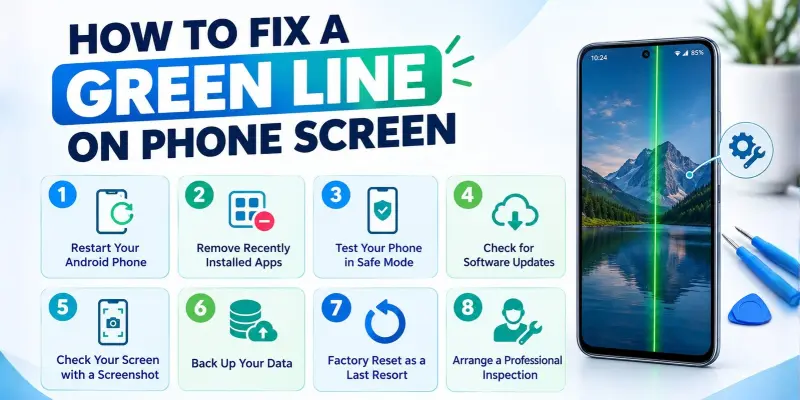
2. How to Fix a Green Line on an Android Phone Screen
If you notice a green line on your Android phone screen, try these steps to identify the cause. Software fixes may help with temporary glitches, but a persistent line may indicate a hardware problem.
Step 1. Restart Your Android Phone
Turn off your phone completely, wait a few seconds, and turn it back on. Restarting can resolve temporary software glitches that may affect the display.
Check whether the green line disappears. If it remains visible, try the next step.
Step 2. Remove Recently Installed Apps
If the green line appeared after you installed a new app, that app may be causing the problem.
Uninstall recently installed apps one at a time and check the screen after each removal. If the line appears across the home screen and other apps, the problem is less likely to be app-related.
Step 3. Test Your Phone in Safe Mode
Safe Mode temporarily disables downloaded apps, helping you check whether a third-party app is causing the issue.
Enter Safe Mode using the method supported by your phone model, then check whether the green line remains.
- If the line disappears: A downloaded app may be responsible.
- If the line remains: The issue may be related to the system or display hardware.
Restart your phone normally to exit Safe Mode.
Step 4. Check for Software Updates
An Android update may fix certain software bugs affecting the display.
- Open Settings.
- Select Software update or System update.
- Check for available updates.
- Install an official update if one is available.
The menu names may vary by phone brand. For example, Samsung Galaxy users can usually find this option under Settings > Software update, while Google Pixel users can check under Settings > System > Software update.
An update may help with software-related problems, but it cannot repair a physically damaged display panel.

Step 5. Check Your Screen with a Screenshot
Take a screenshot while the green line is visible and view it on another device.
If the line appears in the screenshot, a software or image-rendering issue may be involved. If the screenshot looks normal but the physical screen still shows the line, a display hardware problem becomes more likely.
This test is a useful clue, not a definite diagnosis.
Step 6. Back Up Your Data
If the green line continues, back up your photos, videos, contacts, and other important files using a suitable cloud service or computer.
Your screen problem may worsen, making it harder to access your data later.
Step 7. Consider a Factory Reset Only as a Last Resort
A factory reset erases your personal data and returns your phone to its initial software state. Consider it only if other troubleshooting steps have failed and there is a reasonable reason to suspect a software problem.
To perform a factory reset on your Android phone:
- Open Settings.
- Tap System or General management, depending on your phone model.
- Select Reset or Reset options.
- Tap Factory data reset or Erase all data.
- Follow the on-screen instructions to confirm the reset.
The exact steps may vary depending on your phone’s brand and Android version. Back up your important data before proceeding.
A factory reset is unlikely to fix a damaged display panel or faulty internal connection, so it should not be your first choice.
Step 8. Arrange a Professional Inspection
If the green line remains after these checks, contact an authorized service center or qualified phone repair technician.
A persistent line may be caused by a faulty display panel, a damaged internal connection, or another hardware problem.
Ask about the repair cost and warranty coverage before agreeing to a repair. Samsung, Google Pixel, and other Android customers should also determine whether their device is eligible for a manufacturer warranty or repair program.
Avoid pressing the screen, applying heat, or trying DIY laser methods, as these can cause further damage.
How to Fix a Green Line on an iPhone Screen
If you notice a green line on your iPhone screen, try the following steps to identify the possible cause. The issue may be related to a temporary software glitch or a hardware problem with the display.
Step 1. Restart Your iPhone
A temporary software glitch may cause unusual display behavior. Restarting your iPhone can sometimes resolve these issues.
Turn off your iPhone, wait a few seconds, and turn it back on. Check whether the green line disappears.
If the line remains, try the next step.
Step 2. Update iOS
An iOS update may fix software bugs that affect your iPhone’s display.
- Open Settings.
- Tap General.
- Select Software Update.
- If an update is available, follow the on-screen instructions to install it.
Connect your iPhone to Wi-Fi and make sure it has sufficient battery power before updating. Back up your important data beforehand.
An update may help with software-related problems, but it cannot repair a physically damaged screen.
Step 3. Check Your iPhone with a Screenshot
Take a screenshot while the green line is visible and view it on another device.
If the line appears in the screenshot, a software or image-rendering issue may be involved. If the screenshot looks normal but the physical screen still shows the line, a display hardware problem becomes more likely.
This test provides a useful clue, but it cannot confirm the exact cause.
Step 4. Check Whether the Problem Occurs in Different Apps
Open different apps, the Home Screen, and the Settings app to see whether the green line remains visible.
If the line appears across different screens, the issue is less likely to be limited to one app. A persistent line may indicate a display hardware problem, although software issues cannot be ruled out completely.
If the line appears only in one app, update the app and see whether the issue is resolved.
If the green line appeared after you recently installed an app, try uninstalling that app and check whether the problem continues.
Step 5. Back Up Your iPhone
If the green line continues, back up your important data, including photos, videos, contacts, and other files.
You can back up your iPhone using iCloud or a compatible computer. Keeping a backup helps protect your data if the screen problem worsens or your phone needs repair.
To back up your iPhone using iCloud:
- Open Settings.
- Tap your name at the top.
- Select iCloud.
- Tap iCloud Backup.
- Select Back Up Now.
Connect to Wi-Fi and make sure you have enough iCloud storage before starting the backup.
Step 6. Reset Your iPhone Only If Necessary
A factory reset erases your personal data and returns your iPhone to its initial setup state. Consider it only if other troubleshooting steps fail and you suspect a software issue.
Before proceeding, back up your important data.
To reset your iPhone:
- Open Settings.
- Tap General > Transfer or Reset iPhone.
- Select Erase All Content and Settings.
- Tap Continue and follow the on-screen instructions.
A factory reset is unlikely to fix a damaged display panel or faulty internal connection, so use it only as a last resort.
Step 7. Contact Apple Support
If the green line remains after trying these fixes, contact Apple Support to check whether your iPhone needs a screen replacement or further diagnosis.
Check your iPhone’s warranty status and repair cost before proceeding. Avoid pressing or heating the screen, as this may cause further damage.

Should You Repair the Screen or Replace the Phone?
If your phone has a green line on the screen, you may wonder whether to repair the display or buy a new phone. The right choice depends on your phone’s age, overall condition, repair cost, and warranty coverage.
When Should You Repair the Screen?
Screen repair may be a good option if:
- Your phone works normally apart from the green line.
- The phone is relatively new and meets your needs.
- The repair cost is reasonable compared with the price of a replacement phone.
- Your phone is under warranty or eligible for repair.
Before agreeing to a repair, ask a qualified technician to inspect the display and provide a repair estimate.
When Should You Replace the Phone?
Replacing your phone may make more sense if:
- The screen repair cost is close to the price of a suitable replacement phone.
- Your phone has other serious problems, such as poor battery life or frequent performance issues.
- The phone is old and no longer receives important software updates.
How Much Does It Cost to Repair a Green Line on a Phone Screen?
The cost depends on your phone model, display type, location, and repair provider. Replacing an OLED or AMOLED display can be expensive, especially on premium phones.
Check the repair price with the manufacturer or a trusted repair center, then compare it with the cost of a replacement phone. Also, check your warranty coverage before paying for repairs.
Quick tip: If your phone is otherwise in good condition and the repair is affordable, repairing the screen may be the more practical choice. If the phone has several problems and repair costs are high, replacing it may offer better value.
How to Prevent Green Lines on a Phone Screen
You cannot prevent every display problem, but these tips can help reduce the risk of screen damage:
- Use a protective case: Choose a case that helps protect your phone from drops and impacts.
- Apply a screen protector: A suitable screen protector can help protect the screen from scratches and minor impacts.
- Avoid applying too much pressure: Do not sit on your phone or keep it in a tight pocket where it may bend.
- Keep your phone away from moisture: Avoid exposing your phone to water or excessive humidity.
- Avoid overheating: Keep your phone away from excessive heat and direct sunlight for long periods.
- Install official software updates: Keep your phone’s operating system updated to help address software bugs.
- Use compatible chargers and cables: Choose reliable charging accessories that meet your phone’s requirements.
- Handle your phone carefully: Avoid dropping your phone or placing heavy objects on it.
Can You Keep Using a Phone With a Green Line?
Yes, you can usually keep using your phone if the touchscreen and other functions work normally. However, a green line may indicate a display problem that could get worse over time.
Keep these points in mind:
- Check the display: Watch for additional lines, flickering, or dark patches.
- Protect your data: Back up important photos, videos, and contacts.
- Avoid screen pressure: Handle your phone carefully to prevent further damage.
- Get it checked out: If the line persists or the display becomes difficult to use, contact a qualified repair technician.
Even if your phone still works, do not ignore a persistent green line, as it may need professional inspection and possibly screen repair.
Conclusion
So guys, in this blog post, we’ve covered green lines on a phone screen in detail. We’ve discussed their common causes, possible fixes for Android and iPhone, and when to repair or replace your phone.
My recommendation is to start with simple troubleshooting steps, back up your important data, and avoid attempting risky DIY repairs. If the green line persists, get your phone checked by a qualified technician.
If you found this guide helpful, share it with someone facing the same problem!
Frequently Asked Questions (FAQs)
Here are answers to some common questions about green lines on a smartphone screen.
A green line may be caused by a display hardware fault, physical damage, a connection problem, or, in some cases, a software-related issue. If it remains in the same position after restarting, professional diagnosis may be necessary.
Restart your phone, check for official software updates, and use Safe Mode if you have an Android device. If the line persists, it may require professional display repair.
Horizontal lines can result from display panel faults, physical or liquid damage, internal connection problems, or certain software issues. The exact cause depends on the device and symptoms.
A line caused by a temporary software glitch may disappear after restarting or resolving the software issue. A persistent line caused by hardware damage is unlikely to resolve on its own.
An update may resolve certain software-related display problems. However, it cannot repair a physically damaged display panel or faulty internal hardware.
A green patch may indicate a display problem, physical damage, or an unusual colour-rendering issue. If it remains visible across apps and backgrounds, arrange a professional screen inspection.
The repair cost depends on your phone model, display type, and repair provider. OLED and AMOLED screen replacements can be expensive, especially on premium phones. Contact the manufacturer or a trusted repair center for an accurate estimate.
It may be covered if your phone is still under warranty or is part of a manufacturer repair program. Eligibility varies by model, region, device condition, and program terms. Before you pay for repairs, confirm your coverage with Samsung or Google.
A green line or tint can appear without an obvious drop or visible damage. It may be related to a software issue or a display hardware fault. Try basic troubleshooting steps and contact Apple Support or a qualified repair provider if it persists.



- Be Respectful
- Stay Relevant
- Stay Positive
- True Feedback
- Encourage Discussion
- Avoid Spamming
- No Fake News
- Don't Copy-Paste
- No Personal Attacks
- Be Respectful
- Stay Relevant
- Stay Positive
- True Feedback
- Encourage Discussion
- Avoid Spamming
- No Fake News
- Don't Copy-Paste
- No Personal Attacks
