Redmi Note 7 Screen Burn-In: What Causes It and How to Fix It
Published: 2 Jun 2026
If you are noticing faint shadows, keyboard outlines, or ghost images on your Redmi Note 7 screen, you are not alone. Many users search for this issue, thinking their phone display is permanently damaged. This problem is commonly called screen burn-in, and it can be confusing at first.
The good news is that in many cases, what looks like burn-in is actually temporary image retention or a display-related effect that can be improved or fixed.
In this guide, we will clearly explain the Redmi Note 7 screen burn-in issue, why it happens, and how you can easily fix or prevent it. So, let’s dive in.
What Is Redmi Note 7 Screen Burn-In?
Redmi Note 7 screen burn-in means a faded mark or shadow stays visible on the screen even after you close the app or change the display content.
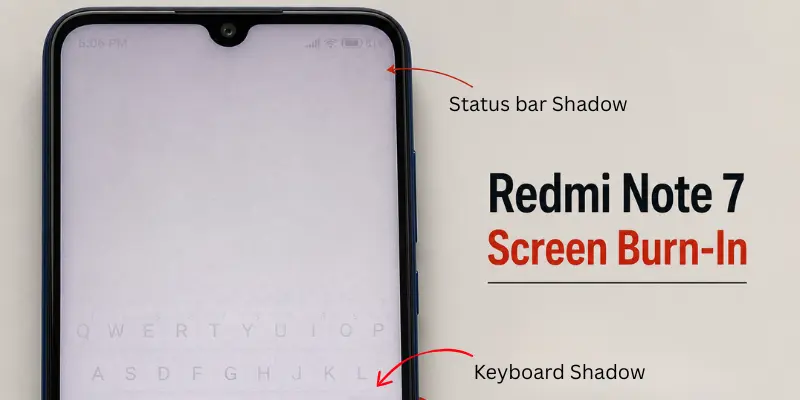
For example, you may see:
- A keyboard shadow
- Status bar marks
- Navigation button marks
- App icon shapes
- A ghost image on a white or grey background
In simple words, the screen keeps showing a light mark of something that was displayed for a long time.
However, it is important to note that the Redmi Note 7 uses an LCD display, not an AMOLED display. So in many cases, what users call burn-in is actually temporary image retention, not permanent damage.
You May Like This Post:
➡️ AMOLED vs IPS LCD: Which Display Should You Pick in 2026?
Screen Burn-in vs Screen Bleeding vs Image Retention: What’s the Difference?
Many Redmi Note 7 users use the words screen burn, screen bleeding, and image retention for the same problem. But these are different display issues. Understanding the difference helps you decide whether your screen can improve with simple fixes or needs repair.
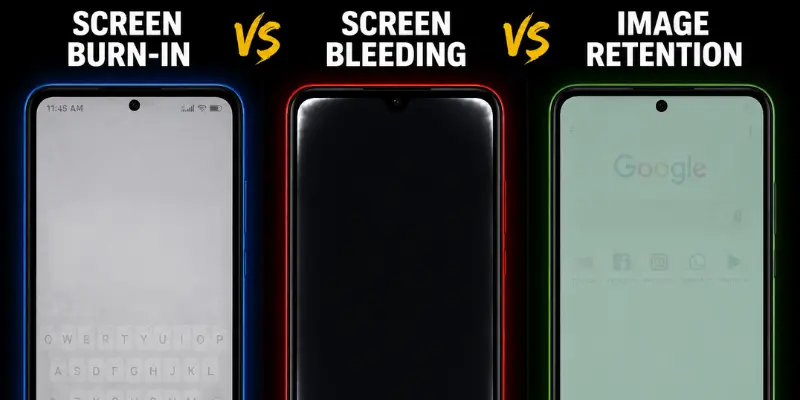
| Issue | What You See | Main Cause | Usually Temporary? |
|---|---|---|---|
| Screen Burn-In | Faded shadow of keyboard, icons, status bar, or app layout | The same screen content stays visible for a long time | Not always |
| Screen Bleeding | Bright light leaking from screen edges or corners | LCD panel pressure, damage, or poor display fitting | Usually no |
| Image Retention | Temporary ghost image after using one screen for a long time | Pixels holding the previous image for a short time | Usually yes |
If you see keyboard marks, status bar shadows, or app icon shapes, it may be screen burn-in or image retention. If you see light coming from the edges, especially on a black background, it is more likely screen bleeding.
Common Signs of Screen Burn-In on Redmi Note 7
Screen burn-in or image retention can appear in different ways. Here are the most common signs Redmi Note 7 users may notice.
1. Keyboard Shadow on Screen
This is one of the most common signs. If you type a lot on WhatsApp, Messenger, Instagram, or any keyboard app, you may later see a light keyboard shape on the screen.
It may be more visible on a white or grey background.
2. Status Bar Marks
The top area of the phone may show faded marks from the battery icon, Wi-Fi icon, time, or signal bars. This happens because the status bar stays in the same place for long hours every day.
3. Navigation Button Marks
If you use the classic three-button navigation system, you may see marks at the bottom of the display. These can look like the back, home, and recent app button shadows.
4. App Icon or Logo Shadow
Sometimes, an app logo, game control, TikTok interface, YouTube button, or static app element may leave a faint shadow on the screen.
This usually happens when the same app stays open for a long time.
5. Ghost Image on White or Grey Background
A ghost image means you can see a faded shape of old screen content even after changing the app or background.
The easiest way to notice it is by opening a plain white or grey image on full screen.
6. Uneven Color or Faded Display Area
Some parts of the screen may look slightly yellow, dull, or faded compared to other areas. This can happen due to display aging, heat, or long-term high brightness use.
How to Fix Redmi Note 7 Screen Burn-In
Before replacing the screen, try these safe fixes. If the problem is temporary image retention, these steps may help. If it is permanent burn-in or hardware damage, the mark may not fully go away.
1. Turn Off Your Phone for a Few Hours
First, turn off your Redmi Note 7 for a few hours. This gives the screen time to rest.
If the mark becomes lighter after turning the phone back on, it may be temporary image retention instead of permanent burn-in.
2. Lower the Screen Brightness
High brightness can make screen marks more visible and stress the display. Keep brightness at a comfortable level instead of 100%, and consider using auto-brightness if your phone supports it.
How to do it:
- Open Settings → Display → Brightness.
- Adjust the slider to a moderate level (around 50–70%).
- Turn on Auto-Brightness to let the phone adjust based on lighting conditions.
3. Use Dark Mode
Dark mode reduces bright areas on the screen and can make shadows less noticeable. It will not repair permanent burn-in, but it may help reduce display stress during long use.
How to enable Dark Mode on Redmi Note 7:
- Open the Settings menu.
- Tap Display.
- Select Dark Mode.
- Turn it on and use it, especially at night or during long screen sessions.
4. Change Wallpaper and Remove Static Widgets
If your home screen has the same wallpaper, clock widget, or app layout for months, try changing it. Static items that stay in one place for a long time can make screen marks more noticeable.
Use a simple wallpaper and avoid keeping bright widgets in the same area of the screen for too long.
5. Use Full-Screen Gestures Instead of Navigation Buttons
If you notice marks at the bottom of your Redmi Note 7 screen, the classic navigation buttons may be part of the reason. Switching to full-screen gestures can help reduce these fixed button shadows.
How to enable full-screen gestures on Redmi Note 7:
- Open Settings on your phone.
- Scroll down and tap Home screen.
- Tap System navigation.
- Choose Gestures instead of Buttons.
- Follow the on-screen guide to use gestures for Back, Home, and Recent apps.
6. Update MIUI to the Latest Version
Sometimes display issues can appear worse because of MIUI bugs, outdated system apps, or color/UI settings. Updating MIUI may help fix minor glitches and improve overall screen performance.
How to update MIUI on Redmi Note 7:
- Open Settings.
- Tap About phone → System update.
- Check for updates and install any available.
- After updating your phone, restart it to apply the changes.
7. Try a Screen Refresh App Carefully
A screen refresh app shows changing colors on the screen to help reduce temporary image retention. It may help if the shadow is light, but it will not fix permanent burn-in or hardware damage.
How to use it safely:
- Install a trusted screen refresh or burn-in test app from the Play Store.
- Keep your brightness at a normal level, not 100%.
- Run the app for a short time, such as 10 to 15 minutes.
- Stop using the app immediately if your Redmi Note 7 becomes unusually warm.
After using the app, check your screen again on a white or grey background. If the mark is still visible, move to the next step.
8. Reset Display Settings
Wrong display settings can sometimes make screen shadows look stronger. If you changed color mode, contrast, reading mode, or night mode, set them back to normal and check the screen again.
How to reset display settings on Redmi Note 7:
- Open Settings.
- Tap Display.
- Turn off Reading Mode or Night Mode if it is enabled.
- Set the color/contrast setting back to normal or default.
9. Factory Reset Your Phone (Last Option)
A factory reset removes your data and brings your Redmi Note 7 back to its default software settings. It cannot fix permanent screen damage, but it may help if the issue is caused by a software bug, display glitch, or system conflict.
How to factory reset your Redmi Note 7:
- Back up your important files, photos, contacts, and apps.
- Open Settings.
- Tap About phone.
- Select Factory reset.
- Tap Erase all data and follow the on-screen instructions.
- Set up your phone again and check the display.
Use this only as a last option. If the marks are still visible after the reset, the issue is likely related to the display hardware rather than the software.
When Should You Replace the Redmi Note 7 Screen?
You should consider replacing the Redmi Note 7 screen only if the burn-in marks are still visible after trying all the safe fixes above, including a factory reset. At this stage, the issue is likely related to the display hardware, not the software.
Before spending money on a screen replacement, check if your phone is still under warranty. If it is, contact Xiaomi Support first and ask whether your display can be inspected or repaired under warranty. Warranty coverage depends on your region, device condition, and the cause of the issue.
If the warranty has expired, visit a trusted or certified technician for a proper diagnosis. Screen replacement cost can vary depending on the service center, repair shop, and display quality. In many cases, replacing the screen can solve the issue and bring the display back to normal.
How to Prevent Screen Burn-In on Redmi Note 7
Prevention is easier than repair. Follow these simple habits to protect your screen:
- Keep brightness at a safe level: Avoid using full brightness all day. Use medium brightness when possible.
- Use auto-lock or sleep timer: Set your screen to turn off after 30 seconds or 1 minute when not in use.
- Avoid keeping one app open for many hours: Apps like games, YouTube, TikTok, Maps, keyboard apps, and social media apps can leave fixed marks if used for too long.
- Change wallpaper sometimes: Avoid using the same bright wallpaper or static widgets for months.
- Avoid overheating: Do not play heavy games while charging, and keep your phone away from direct sunlight.
- Use dark mode at night: It reduces bright screen areas and can make the display easier on the eyes.
- Keep MIUI updated: Software updates can improve display behavior, brightness control, and system stability.
Conclusion
Redmi Note 7 screen burn-in can be frustrating, but you do not need to panic immediately. First, check whether the issue is real burn-in, temporary image retention, or screen bleeding.
If the mark is light, try safe fixes like turning off the phone, lowering brightness, using dark mode, changing wallpaper, and updating software. If the shadow stays permanently or the screen has lines, touch issues, bleeding, or dead spots, then screen replacement may be the right option.
The best approach is simple: test the issue first, try safe fixes, and replace the screen only when it is really needed.
Frequently Asked Questions (FAQs)
Here are the answers to some common questions about the Redmi Note 7 screen burn-in issue:
Yes, some Redmi Note 7 users report seeing screen shadows, ghost images, or keyboard marks. However, because the phone uses an LCD display, many cases are actually temporary image retention rather than permanent burn-in. The good news is that temporary retention often improves with simple fixes and screen care.
Screen burn is not a widespread issue on most Xiaomi phones, especially models with LCD displays. However, users may notice image retention or screen shadows after long periods of displaying the same content. The risk depends on the display type, usage habits, and screen brightness levels.
No, screen burn only affects the appearance of the display. It does not slow down your phone, reduce processing speed, or affect app performance. However, visible shadows or ghost images can make the screen less enjoyable to use.
Keyboard marks can appear when the on-screen keyboard is displayed for long periods every day. In many cases, this is caused by temporary image retention rather than permanent screen damage. The marks are usually easier to notice on white, grey, or light-colored backgrounds.
Open a plain white, grey, or solid-color image and check the screen carefully for shadows or ghost images. Pay close attention to areas where the keyboard, status bar, or navigation buttons usually appear. You can also use a screen testing app to make burn-in or image retention easier to spot.
Screen burn-in looks like a faded shadow of old screen content, such as keyboard marks or status bar icons. Screen bleeding looks like light leaking from the edges or corners, usually visible on a black background.






- Be Respectful
- Stay Relevant
- Stay Positive
- True Feedback
- Encourage Discussion
- Avoid Spamming
- No Fake News
- Don't Copy-Paste
- No Personal Attacks
- Be Respectful
- Stay Relevant
- Stay Positive
- True Feedback
- Encourage Discussion
- Avoid Spamming
- No Fake News
- Don't Copy-Paste
- No Personal Attacks
