Ghost Touch on Phone: Causes and Fixes for iPhone & Android
Published: 21 Oct 2026
Does your phone open apps, type random letters, scroll pages, or press buttons without you touching the screen? This can make it difficult to type messages, play games, watch videos, or even unlock your phone.
This problem is commonly known as ghost touch.
Ghost touch can occur due to a dirty screen, moisture, a damaged screen protector, a faulty charger, overheating, software issues, or physical damage to the display. Some causes can be fixed with simple troubleshooting, while others may require professional repair.
In this guide, you will learn how to fix ghost touch on iPhone and Android, what causes it, and when you should take your phone to a repair centre.
What Is Ghost Touch on a Phone?
Ghost touch is a touchscreen problem in which your phone responds to taps and gestures you didn’t make. It may act as if someone is touching the screen even when you’re not touching it.
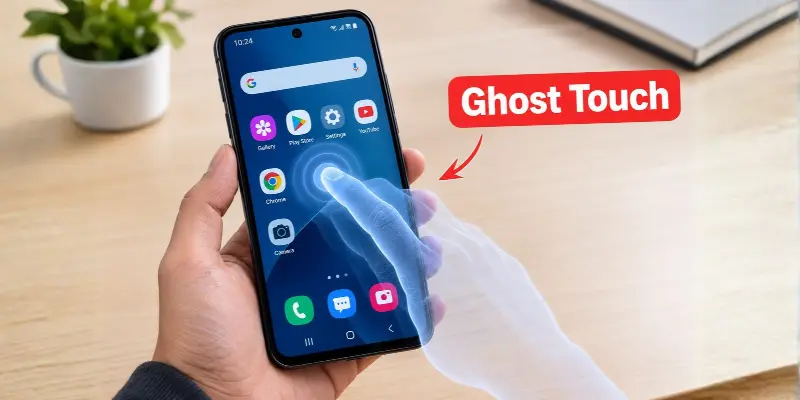
For example, your phone may:
- Open apps automatically
- Type random letters
- Scroll without your touch
- Press buttons by itself
- Close apps suddenly
- Move the keyboard cursor
- Make accidental calls
- Change settings
- Select random items
- Become difficult to control
What Causes Ghost Touch?
Ghost touch can be caused by both software and hardware problems.
Common causes include:
- Dust, oil, or water on the screen
- Cracked or poorly installed screen protector
- Tight phone case
- Faulty charger or cable
- Phone overheating
- Software bugs
- Problematic apps
- Cracked display
- Loose screen connector
- Water damage
- Low-quality replacement screen
- Swollen battery
- Damage after dropping the phone
Notice when the problem starts.
If ghost touch happens only while charging, the charger or cable may be responsible. If it started after a drop or screen replacement, the display hardware may be damaged.
How to Fix Ghost Touch on iPhone and Android
Start with the simplest solutions and test your screen after each step to identify the possible cause of ghost touch.
1. Clean and Dry the Screen
Contamination with dirt, oil, sweat, and water may interfere with touch detection.
Turn off your phone and gently clean the screen with a clean, dry microfiber cloth. Make sure that both the screen and your hands are dry.
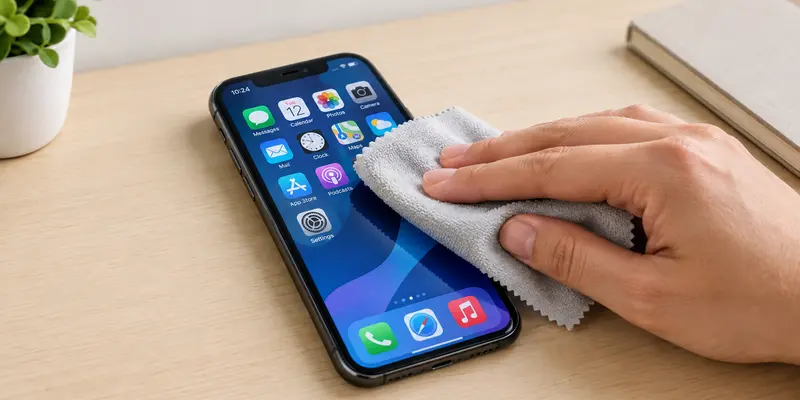
If the screen is greasy, slightly dampen the cloth with clean water. Avoid pouring water directly onto the device.
Avoid using:
- Rough cloth
- Strong cleaning chemicals
- Household sprays
- Sharp objects
- Too much water
If the phone was exposed to rain or moisture, switch it off and allow it to dry properly. Do not charge a wet phone.
2. Remove the Screen Protector
An improperly installed, thick, cracked, or dirty screen protector may cause ghost touches. Bubbles, dirt, or pressure along the edges of the protector can cause problems too.
First, carefully remove the screen protector and test your device without it. If the problem is solved, install a more suitable screen protector for your device.
3. Remove the Phone Case
A tight or damaged phone case may press against the display. This is more common on phones with curved screens or thin side edges.
Remove the case and use the phone for a few minutes.
Check whether the case is:
- Bent or damaged
- Too tight
- Covering part of the screen
- Pressing the side buttons
- Holding dirt or moisture
If removing the case solves the issue, replace it with one that fits properly.
4. Disconnect the Charger
If ghost touches occur while your phone is charging, disconnect the charger to see if the problem is resolved.
A faulty or low-quality charger may cause electrical interference that affects touch input.
Try the following:
- Use the original charger
- Use a certified replacement charger
- Test a different charging cable
- Try another wall socket
- Check the charging port for dirt
- Avoid using the phone while charging

5. Restart the Phone
A restart can clear temporary software errors and refresh the touchscreen system. The steps are different for iPhone and Android phones.
For iPhone
Follow these steps to restart your iPhone:
- Press and hold the Side button and either Volume button until the power-off slider appears.
- Drag the slider and wait for the iPhone to switch off.
- Press and hold the Side button again until the Apple logo appears.
For Android
Follow these steps to restart your Android phone:
- Press and hold the Power button.
- Tap Restart or Reboot.
- Wait for the phone to restart.
The exact steps may vary depending on your phone brand and model.
After restarting, use the phone normally and check whether ghost touch returns.
6. Force Restart the Phone
If the screen is difficult to control, you may not be able to use the normal restart option.
A force restart can help when the display is frozen, or the phone responds to touches automatically.
Force Restart an iPhone 8 or Newer
- Quickly press and release the Volume Up button.
- Quickly press and release the Volume Down button.
- Press and hold the Side button.
- Release it when the Apple logo appears.
Force Restart Most Android Phones
- Press and hold the Power and Volume Down buttons together for around 10 to 20 seconds.
- Release the buttons when the phone restarts or the logo appears.
The button combination may be different on some devices.
After the force restart, check whether your phone still responds to touches on its own.
7. Let the Phone Cool Down
Excessive heat can affect touchscreen performance.
Ghost touch may appear when you are:
- Playing heavy games
- Recording long videos
- Charging the phone
- Using it in direct sunlight
- Running many apps
- Using GPS and mobile data together
Stop using the phone and disconnect the charger.
Remove the case and leave the device in a cool, dry place until its temperature returns to normal.
Do not place the phone in a refrigerator or freezer. Sudden temperature changes can create moisture inside the device.
8. Update the Phone Software
Software bugs can sometimes cause touchscreen problems.
Phone manufacturers release updates to fix system errors, improve stability, and solve compatibility issues.
Update an iPhone
Go to:
Settings > General > Software Update
Download and install any available update.
Update an Android Phone
Go to:
Settings > System or Software Update
Check for available updates and install them if available.
9. Update Your Apps
In case of ghost touch or unusual screen movement in one application, it is most likely that this particular app is causing this problem.
Open the App Store or Google Play Store to check for updates for your apps.
You can also:
- Force close the app
- Restart the phone
- Clear its cache on Android
- Uninstall and reinstall it
- Use another similar app
If the screen works normally everywhere except in one app, the problem may be related to that app rather than the phone’s display.
10. Remove Recently Installed Apps
If the problem started after installing a new application, remove that app and restart the phone.
Pay attention to apps such as:
- Third-party keyboards
- Screen filters
- Launchers
- Gaming tools
- Screen recorders
- Cleaning apps
- Battery-saving apps
- Touch control apps
- Apps installed outside official stores
Remove recently installed apps one by one and test the phone after each removal.
Additional Fixes for Ghost Touch
If the problem continues after trying the basic solutions, check the following options. Some settings are available only on certain phones or software versions.
11. Test the Phone in Safe Mode (Android)
Safe Mode can help you check whether a third-party app is causing ghost touch.
Follow these steps:
- Open the Power menu on your Android phone.
- Press and hold the Power off option if available.
- Tap Safe Mode if the option appears.
- Check whether the touchscreen works normally.
If ghost touch stops in Safe Mode, a downloaded app may be causing the problem. Try removing recently installed apps to see if the issue is resolved.
The steps to enter Safe Mode may vary depending on your Android phone.
12. Check Touch Sensitivity Settings (Android)
Some Android phones have a touch sensitivity setting that changes how easily the screen responds to touch. If your screen does not respond properly when you use a screen protector, this setting may help.
On supported Samsung phones, you can check this option by following these steps:
- Open Settings.
- Tap Display.
- Look for Touch sensitivity.
- If you use a screen protector and the screen misses touches, try turning this option on.
If touch sensitivity is already enabled, try turning it off and test the screen again.
Keep in mind that increasing touch sensitivity does not necessarily fix ghost touch.
13. Check Touch Accommodations (iPhone)
Touch Accommodations changes how your iPhone responds to taps, swipes, and repeated touches. Incorrect settings may affect how you interact with the screen.
To check these settings:
- Open Settings.
- Tap Accessibility.
- Select Touch.
- Tap Touch Accommodations.
- If this feature is enabled and you do not need it, try turning it off and test the screen again.
If you use this feature, review its settings instead of disabling it.
14. Reset All Settings
Incorrect settings may sometimes affect touchscreen performance. Resetting all settings may help fix the problem.
On iPhone:
- Go to Settings > General > Transfer or Reset iPhone > Reset.
- Tap Reset All Settings and confirm.
On Android:
- Go to Settings > System > Reset options.
- Select Reset settings, if available, and follow the instructions.
Resetting all settings generally does not delete personal files, but it may reset network and other preferences.
After the reset, test your touchscreen to see whether ghost touch continues.
15. Perform a Factory Reset
If ghost touch continues after trying the previous solutions, a factory reset may help fix software-related problems.
Before resetting your phone, back up your important photos, contacts, and files because this process erases personal data stored on the device.
On iPhone:
- Go to Settings > General > Transfer or Reset iPhone.
- Tap Erase All Content and Settings and follow the instructions.
On Android:
- Go to Settings > System > Reset options.
- Tap Erase all data (factory reset) and follow the instructions.
After the reset, test your touchscreen before reinstalling your apps. If ghost touch continues, your phone may have a hardware problem that requires professional repair.
When Should You Visit a Repair Centre?
If ghost touch continues after trying these solutions, your phone may have a hardware problem that needs professional repair.
You should consider visiting a repair centre if:
- Your screen is cracked or physically damaged.
- Ghost touch started after dropping your phone.
- The phone was exposed to water or moisture.
- The screen was recently replaced, and touch problems started afterward.
- Ghost touch continues even after a factory reset.
- The screen lifts from the frame, or the battery appears swollen.
Do not press a lifted screen or attempt to repair a swollen battery yourself. Stop using the phone and seek professional help.
A technician can inspect the touchscreen, display connector, battery, and other components to identify the cause.
How to Prevent Ghost Touch on a Phone
You can reduce the risk of ghost touch by following these simple tips:
- Keep the screen clean and dry.
- Use an original or certified charger.
- Install a suitable screen protector.
- Use a properly fitted phone case.
- Avoid using the phone with wet hands.
- Protect the phone from drops.
- Keep apps and software updated.
- Avoid excessive heat.
- Never charge a wet phone.
- Repair screen cracks early.
- Choose a quality replacement display from a reliable repair provider.
Conclusion
Ghost touch on a phone can be frustrating, but simple solutions may help fix the problem. Sometimes, cleaning the display, changing the charger, restarting the phone, or updating the software can solve the issue.
If these fixes do not work, you can try additional troubleshooting steps, such as checking touch settings or resetting your phone. If the problem still continues, it may be caused by a hardware issue that requires professional repair.
The best approach is simple: identify the cause first, try safe fixes, and seek professional repair only when necessary.
Frequently Asked Questions (FAQs)
Here are the answers to some common questions about how to fix ghost touch on a phone.
Yes, a swollen battery can press against the phone’s display and cause touchscreen problems. If your phone’s screen is lifting or the battery appears swollen, stop using and charging the device. Contact a professional technician because a swollen battery can be dangerous.
No, ghost touch does not always mean the screen needs replacement. Dirt, moisture, a faulty charger, or software problems may cause it. If the problem continues after basic troubleshooting, a technician can inspect the phone and determine whether the display needs replacement.
Your phone may open apps, type random letters, or scroll by itself because of ghost touch. Common causes include a dirty screen, a faulty charger, software bugs, or a damaged touchscreen. Clean the screen, disconnect the charger, and restart your phone to see whether the problem stops.
Yes, ghost touch can sometimes be fixed by cleaning the screen, removing the screen protector, disconnecting a faulty charger, restarting the phone, or updating its software. However, if the problem is caused by a damaged display or internal component, professional repair may be necessary.
To stop ghost touch on an iPhone, clean and dry the screen, remove the screen protector, disconnect the charger, and restart the device. You can also update iOS and check Touch Accommodations settings. If the problem continues, back up your data before considering a factory reset or contacting Apple Support.
To fix ghost touch on Android, clean the screen, remove the case and screen protector, disconnect the charger, and restart your phone. You can also update Android, test the device in Safe Mode, and check touch sensitivity settings if available. If ghost touch persists after troubleshooting, the phone may need professional repair.



- Be Respectful
- Stay Relevant
- Stay Positive
- True Feedback
- Encourage Discussion
- Avoid Spamming
- No Fake News
- Don't Copy-Paste
- No Personal Attacks
- Be Respectful
- Stay Relevant
- Stay Positive
- True Feedback
- Encourage Discussion
- Avoid Spamming
- No Fake News
- Don't Copy-Paste
- No Personal Attacks
