Mobile Phone Screen Cleaning Guide: Safe and Effective Methods
Published: 29 Jul 2026
A mobile phone screen collects fingerprints, dust, oil, and germs every day. Over time, this buildup can make the display look dull, reduce visibility, and even affect touch responsiveness.
While cleaning your phone screen seems simple, using the wrong cloth, cleaner, or technique can scratch the glass or damage its protective coating.
In this guide, you’ll learn how to clean a mobile phone screen safely, the mistakes to avoid, and simple tips to keep your display clear, smooth, and looking like new.
Quick Answer
To clean a mobile phone screen, turn off the device, unplug any connected cables, and remove the phone case. Gently wipe the screen with a clean, dry microfiber cloth. For stubborn fingerprints or smudges, lightly dampen one corner of the cloth with clean water and wipe the screen without applying too much pressure.
Never spray water or any cleaning liquid directly onto the phone. Avoid using paper towels, abrasive wipes, window cleaner, bleach, harsh chemicals, or sharp objects because they can damage the screen or its protective coating.
Why Should You Clean Your Phone Screen?
A phone screen comes into contact with your fingers, face, pockets, bags, tables, and many other surfaces throughout the day.
Because of this, your phone screen can collect:
- Fingerprints
- Skin oil
- Dust
- Pocket lint
- Makeup
- Sweat
- Food marks
- Moisture
- Dirt around the edges
- Germs from frequently touched surfaces
What Do You Need to Clean a Mobile Phone Screen?
You only need a few simple items to clean your phone screen safely. Most of them are easy to find at home.
You’ll need:
- A clean microfiber cloth
- Clean water
- A second dry microfiber cloth
- A soft, dry brush for cleaning the edges
- A phone-safe screen wipe (optional)
A clean microfiber cloth is the best choice because it removes dust, fingerprints, and oil without scratching the display. Avoid using a cloth that has been used with furniture polish, glass cleaner, or other chemicals, as any leftover residue could damage or smear your phone screen.
How to Clean a Mobile Phone Screen
Follow these six simple steps to clean your phone screen safely without scratches or damage.
Step 1: Turn Off Your Phone
Turn off your phone before cleaning the screen. A black screen makes fingerprints and smudges easier to see while preventing accidental touches.
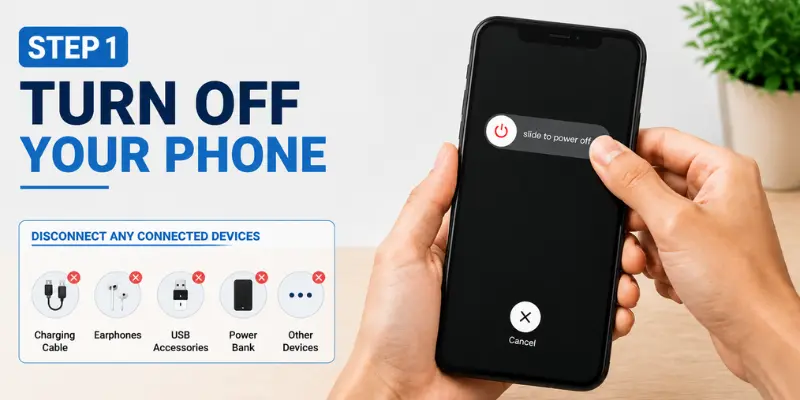
Disconnect any connected accessories, such as:
- Charging cable
- Earphones
- USB accessories
- Power bank
- Other connected devices
Step 2: Remove the Phone Case
Remove the phone case before cleaning the screen. Dust and dirt trapped around the edges of the case can easily transfer back onto the display.
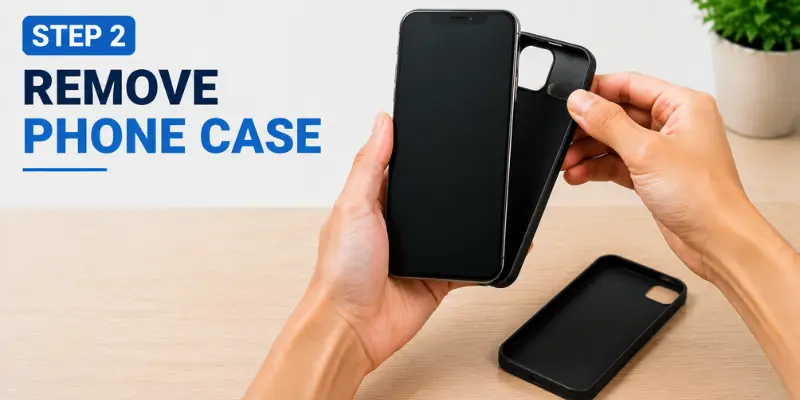
If the case is dirty, clean it separately and let it dry completely before putting it back on.
Step 3: Wipe the Screen with a Microfiber Cloth
Use a clean, dry microfiber cloth to gently wipe the screen. Move the cloth in small circular motions or wipe from one side to the other without pressing too hard.
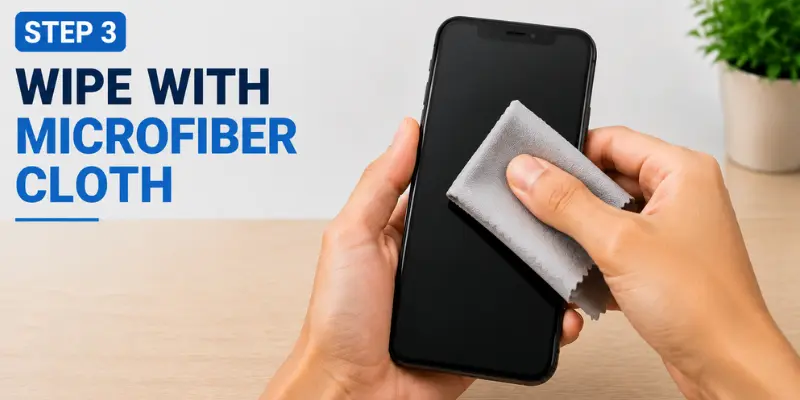
A dry microfiber cloth is usually enough to remove:
- Dust
- Fingerprints
- Light oil marks
- Loose dirt
Step 4: Remove Stubborn Smudges
If fingerprints or oily smudges remain after dry cleaning, lightly dampen one corner of a clean microfiber cloth with water and gently wipe the affected area.
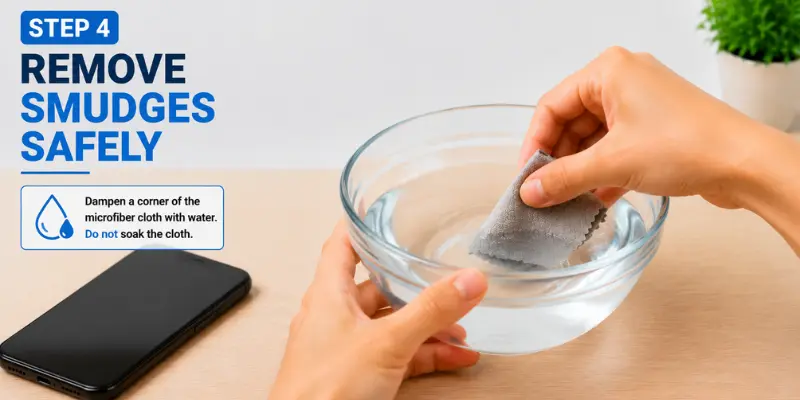
To avoid damaging your phone:
- Never spray water directly onto the screen.
- Do not soak the microfiber cloth.
- Keep moisture away from the speaker, microphone, charging port, and other openings.
Even if your phone is water-resistant, moisture can still cause damage if it enters through cracks or exposed openings.
Step 5: Dry the Screen
After cleaning the screen, use a clean, dry microfiber cloth to remove any remaining moisture.
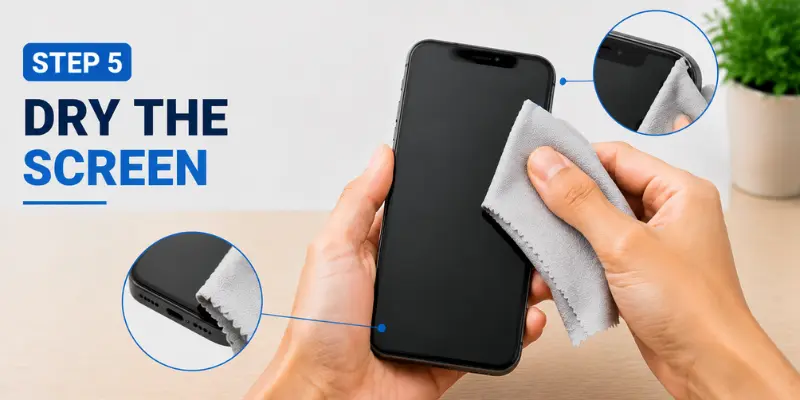
Make sure to dry these areas carefully:
- Screen edges
- Speaker grille
- Camera
- Side buttons
- Charging port
Wait until your phone is completely dry before turning it on or connecting it to a charger.
Step 6: Check Before Using
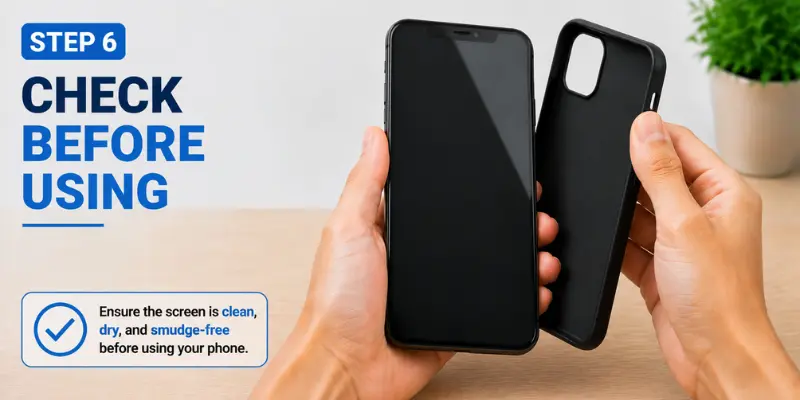
Before using your phone again, make sure the screen is clean and completely dry. Reinstall the phone case, reconnect your accessories, and turn the device back on.

What Should You Avoid When Cleaning a Phone Screen?
Using the wrong cleaning method can damage your phone’s display, protective coating, or internal components. Avoid these mistakes when cleaning your phone screen:
- Do not apply liquid directly to the screen — It can enter the speaker, charging port, buttons, or screen edges and damage the phone.
- Avoid glass or window cleaners — These products may contain chemicals that can damage the screen’s protective coating.
- Do not use bleach or harsh chemicals — Strong cleaners can harm the display, frame, and oleophobic coating.
- Avoid paper towels and tissues — They may scratch the screen and leave small fibers behind.
- Never use sharp objects — Pins, blades, or metal tools can permanently scratch or crack the display.
- Do not press too hard — Excessive pressure can damage the screen, especially if it is already cracked or weakened.
- Avoid hair dryers and direct heat — Heat can damage the screen adhesive, battery, and internal components.
- Do not use high-pressure compressed air — It can push dust, dirt, or moisture deeper into the phone.
How to Clean a Phone Screen Without a Microfiber Cloth
A microfiber cloth is the safest option for cleaning a phone screen. If one is not available, use a clean, soft, lint-free cloth without rough seams, printed designs, or trapped dirt.
Wipe the screen gently without applying too much pressure.
Do not use:
- Toilet paper
- Facial tissues
- Kitchen towels
- Rough or printed shirt fabric
- Dirty or previously used cleaning cloths
These materials may scratch the screen, leave fibers behind, or spread dirt and oil across the display.
Tips to Keep Your Phone Screen Clean for Longer
Here are some ways you can minimize dirt and fingerprints on your phone:
- Wash and dry your hands before handling your phone.
- Do not touch the screen while eating.
- Do not place your phone on dusty or dirty surfaces.
- Clean the phone case regularly.
- Avoid placing your phone face down.
- Use an efficient screen protector.
- Keep a clean microfiber cloth nearby.
- Avoid handling your phone with wet hands.
- Wipe away oil, sweat, or makeup around the earpiece.
Conclusion
So guys, in this article, we’ve covered how to clean a mobile phone screen in detail. My recommendation is to follow safe cleaning methods every time instead of using quick fixes that may harm your phone. Using the right tools and avoiding common mistakes can help protect your phone’s screen, improve your viewing experience, and extend its life
If this article answered your questions, feel free to share it and check out more helpful mobile phone guides on our website.
Frequently Asked Questions (FAQs)
Here are answers to some of the most frequently asked questions about cleaning a mobile phone screen.
There is no fixed schedule for cleaning your phone screen. Clean it whenever you notice fingerprints, dust, smudges, or dirt on the display. If you use your phone frequently, wiping the screen with a clean microfiber cloth once a day can help keep it clean and responsive.
It depends on your phone manufacturer’s recommendations. Many smartphones can be cleaned with 70% isopropyl alcohol wipes, but some manufacturers recommend limiting their use. Always check your phone’s official cleaning guidelines before using them.
No. Most hand sanitizers contain chemicals that may damage your phone’s protective screen coating. Use a cleaner that is safe for electronic screens instead.
Yes. Heavy dirt, grease, or moisture can make the touchscreen less responsive. Keeping the screen clean helps maintain smooth touch performance.
A clean microfiber cloth is the safest option. It removes fingerprints and dust without scratching the display.





- Be Respectful
- Stay Relevant
- Stay Positive
- True Feedback
- Encourage Discussion
- Avoid Spamming
- No Fake News
- Don't Copy-Paste
- No Personal Attacks
- Be Respectful
- Stay Relevant
- Stay Positive
- True Feedback
- Encourage Discussion
- Avoid Spamming
- No Fake News
- Don't Copy-Paste
- No Personal Attacks
