Screen Burn on Phones: How to Check, Fix and Prevent It
Published: 3 Aug 2026
Ever noticed a faint keyboard outline, app icon shadow, navigation bar mark, or status bar shape on your phone screen even after changing the page? That ghost-like image could be a sign of screen burn.
Screen burn is more common on OLED and AMOLED phone displays, especially when the same bright image or static screen element stays visible for long periods. It can happen slowly, so many users do not notice it until they open a plain white, gray, or dark background.
In this guide, you will learn what screen burn on a phone is, what causes it, how to tell the difference between screen burn and image retention, how to reduce it, and how to prevent it before it becomes permanent.
Quick Answer
Screen burn on a phone is a display problem where a faint image, icon, keyboard, status bar, or navigation bar stays visible on the screen even after the content changes. It usually happens when some pixels wear out faster than others because the same static image stays on screen for too long.
Temporary image retention may disappear after normal use, but true screen burn is usually permanent. You can reduce its visibility in some cases, but prevention is the best solution.
What Is Screen Burn on a Phone?
Screen burn, also called burn-in or display burn, happens when part of your phone screen shows a permanent or semi-permanent shadow of an old image. This shadow may look like app icons, a keyboard layout, a notification bar, a gaming control, or a navigation button.
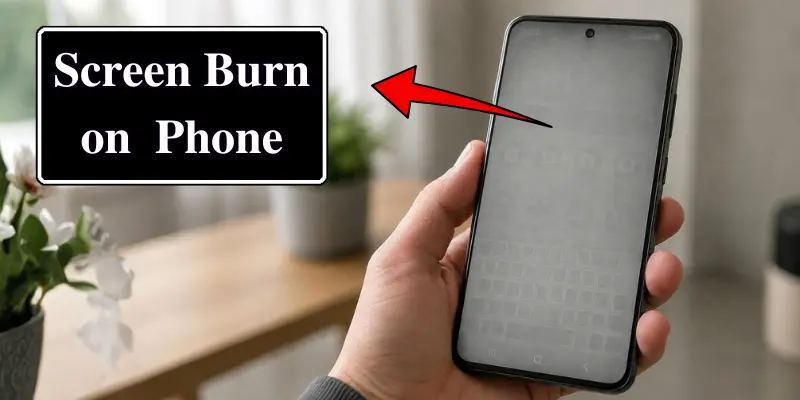
Screen burn is a faint ghost image that remains visible on your phone screen even after the original content has changed. This usually happens when certain pixels wear out faster than others because the same static images or screen elements stay on the display for long periods.
For example, if you watch TikTok for several hours every day with your screen brightness set to maximum, the app’s bottom navigation bar or other static interface elements may eventually leave a faint outline on the display. If the burn-in becomes permanent, you may still notice these marks when viewing a plain white, gray, or black background.
Screen Burn vs Image Retention: What Is the Difference?
Many people call every ghost image “screen burn,” but not every ghost image is permanent. Sometimes, the issue is only temporary image retention.
Image retention is temporary and may disappear after a few minutes or hours of normal use. Screen burn is usually permanent because the pixels have aged unevenly.
Here is the simple difference:
| Feature | Screen Burn | Image Retention |
|---|---|---|
| Meaning | Permanent ghost image or discoloration | Temporary afterimage |
| Cause | Uneven pixel wear | Temporary pixel behavior |
| Common on | OLED and AMOLED screens | OLED, AMOLED, LCD, and other screens |
| Does it go away? | Usually no | Usually yes |
| Fix | Often needs screen replacement | May improve with rest or normal use |
| Example | Status bar always visible | Keyboard outline fades after some time |
Why Does Screen Burn Happen?
Screen burn occurs when the same static images or screen elements remain visible for a long time, causing uneven pixel wear on the display.
The most common causes of screen burn include:
1. High Brightness for Long Hours
Keeping your phone’s screen at high brightness for extended periods makes the pixels work harder. Over time, this can speed up pixel wear, especially on OLED and AMOLED displays, increasing the risk of screen burn.
2. Static Screen Elements
Some screen elements remain in the same position most of the time, such as the status bar, battery icon, clock, navigation buttons, search bar, and keyboard. Because these elements stay visible for long periods, they can cause uneven pixel wear over time.
3. Always-On Display
When your phone is locked, the Always-On Display (AOD) shows the time, date, notifications, or fingerprint icon. If these elements remain in the same position for long periods, they can increase the risk of screen burn.
Most modern smartphones slightly move Always-On Display elements to help reduce this risk, but prolonged use can still contribute to burn-in over time.
4. Long Gaming Sessions
Many mobile games display fixed elements such as health bars, maps, scoreboards, and control buttons. Playing the same game for several hours at high brightness can cause these static elements to leave faint marks on the screen over time.
5. Watching Apps With Static Logos
Some video, news, live-streaming, and TV apps display logos, banners, or playback controls in the same position for long periods. These static elements can contribute to uneven pixel wear over time, increasing the risk of screen burn.
6. Using the Same Wallpaper for Years
A wallpaper alone is unlikely to cause screen burn. However, using the same bright or high-contrast wallpaper for months or years may contribute to uneven pixel wear, especially on OLED and AMOLED displays.
What Does Screen Burn Look Like?
Screen burn can appear as faded app icons, keyboard outlines, navigation buttons, status bar shadows, or uneven colors on the display. It is usually most noticeable on white, gray, blue, or black backgrounds.
Common signs of screen burn include:
- A faint keyboard outline that remains visible after closing the keyboard
- A ghost image of app icons on the home screen
- A visible navigation bar at the bottom of the screen
- A faint status bar shadow at the top
- A faint outline of TikTok, YouTube, or game interface elements
- Uneven colour patches on a plain background
- A darker or lighter area in one part of the display
- A fingerprint sensor icon mark on the lock screen
Screen burn can be mild or severe. In mild cases, you may only notice it when viewing a gray test screen or a solid-colour background. In more severe cases, the ghost image may remain visible even during everyday phone use.
Which Phone Screens Are Most at Risk?
OLED and AMOLED phone screens are more at risk because each pixel lights itself. LCD screens can also show temporary image persistence, but permanent burn-in is usually more associated with OLED-style displays.
Here is a simple comparison:
| Screen Type | Burn-In Risk | Notes |
|---|---|---|
| OLED | Medium to High | Each pixel produces its own light, making it more prone to uneven pixel wear over time. |
| AMOLED | Medium to High | Uses self-lit pixels, so static images can increase the risk of screen burn. |
| Super AMOLED | Medium to High | An improved version of AMOLED, but it still uses self-lit pixels and can experience burn-in. |
| LCD | Low | Uses a backlight instead of self-lit pixels, making permanent screen burn much less common. |
| Mini-LED | Low to Medium | Uses thousands of small backlights, reducing the risk of burn-in compared to OLED displays. |
This does not mean OLED phones are bad. In fact, OLED screens often look better than LCD screens. They offer deeper blacks, better contrast, and richer colors. You just need better screen habits to keep them healthy.
How to Check Screen Burn on Your Phone
You can check for screen burn at home using a plain-colored screen. Ghost images, icons, bars, or uneven colors are usually easier to spot on solid backgrounds, especially gray or white.
Simply follow these steps:
- Wipe down the phone screen so that smudges won’t mess with you.
- Set the screen brightness to around 50%.
- Open a full-screen white picture.
- Look at the screen from the top, bottom, and center.
- Conduct this test with gray, red, green, blue, and black screens.
- Look for tiny symptoms like icons, bars, lines on the keyboard, or discoloration.
- Turn off your phone for a few hours and retest the screen.
If the mark remains visible for several days, it could be a sign of permanent burn-in.
You can also use our Screen Color Test tool to display solid white, gray, black, red, green, and blue screens for a more accurate burn-in check. If you use a third-party app instead, download it only from a trusted source and avoid apps that request unnecessary permissions.
Can Screen Burn Be Fixed?
True screen burn is usually permanent because it happens due to uneven pixel wear. However, if the issue is temporary image retention, some steps can help reduce the visible marks and prevent further damage.
Try these steps first:
1. Turn Off the Phone for a Few Hours
If the mark is temporary, giving the screen rest may help. Turn off your phone for a few hours and check again.
2. Lower the Brightness
Reduce screen brightness to around 40–50%. This will not repair permanent burn-in, but it can reduce pixel stress and make the marks less noticeable.
3. Use Dark Mode
Dark mode reduces the amount of bright static content displayed on OLED and AMOLED screens. It can help slow down further pixel wear.
4. Change Wallpaper and Theme
Use a darker wallpaper and avoid bright static designs. Also, change your layout from time to time so the same icons do not stay in the exact same place for years.
5. Hide Navigation Buttons
If your phone supports gesture navigation, use it instead of fixed navigation buttons. This can reduce the chance of permanent marks at the bottom of the display.
6. Update Phone Software
Software updates may improve display behavior, brightness management, Always-On Display movement, and screen protection features.
7. Use a Pixel Refresh or Screen Care Feature
Some devices include screen care, pixel refresh, or display optimization options. If your phone has this feature, use it according to the brand’s instructions.
8. Try a Burn-In Test or Color Cycling Video
Color cycling videos and screen test tools may help with image retention. They cannot repair permanently damaged pixels, but they may reduce temporary ghosting.
9. Replace the Screen
If the burn-in is permanent and clearly visible, screen replacement is the only real fix. Before paying for repair, check your warranty or device protection plan.
How to Prevent Screen Burn on a Phone
Preventing screen burn is easier than fixing it later. Simple display habits can help protect your phone screen and reduce the risk of burn-in over time.
Here are some simple prevention tips:
- Keep brightness at a comfortable level: Avoid using maximum brightness for long periods to reduce pixel stress.
- Avoid long periods of static content: Do not leave the same image, app interface, or game controls on the screen for many hours.
- Use screen timeout settings: Allow your phone screen to turn off automatically when not in use.
- Change wallpapers and layouts occasionally: Moving icons and changing static designs can help prevent uneven pixel wear.
- Use display-friendly settings: Enable options like auto-brightness, dark mode, or pixel protection features when available.
- Avoid long gaming sessions at maximum brightness: Fixed game elements can increase the risk of burn-in over time.
- Keep your phone software updated: Updates may include display improvements and screen protection features.
You do not need to worry too much if you use your phone normally. Screen burn usually develops after long-term, repeated exposure to bright static content, especially on OLED and AMOLED displays
Conclusion
So guys, in this article, we’ve covered what screen burn on a phone is in detail, from why it happens to how you can check, reduce, and prevent it. A little care can go a long way in protecting your phone screen, especially if your device uses an OLED or AMOLED display.
My personal recommendation is to keep brightness under control, avoid long periods of static content, and use your phone with good display habits instead of waiting for problems to appear.
If this article helped you understand screen burn better, don’t forget to share it and check out our other mobile phone guides for more useful tips.
Frequently Asked Questions
Here are the answers to some common questions about screen burn on a phone.
No, screen burn and dead pixels are different display problems. Screen burn appears as a faint shadow of previous images, while dead pixels appear as tiny black or colored dots that no longer work. They require different solutions.
Screen burn appears as a faint shadow of old images, icons, or interface elements that remain visible after the content changes. White dots are small bright spots that usually appear due to display layer damage or pixel-related issues. Both are display problems, but they have different causes and solutions.
Yes, using very high brightness for long periods can increase the risk of screen burn, especially on OLED and AMOLED displays. Bright pixels work harder and may wear unevenly over time. Keeping brightness at a comfortable level can help protect your screen.
True screen burn is usually permanent because it happens due to uneven pixel wear. However, some marks may only be temporary image retention and can disappear after normal use. The solution depends on whether the pixels are permanently affected or not.




- Be Respectful
- Stay Relevant
- Stay Positive
- True Feedback
- Encourage Discussion
- Avoid Spamming
- No Fake News
- Don't Copy-Paste
- No Personal Attacks
- Be Respectful
- Stay Relevant
- Stay Positive
- True Feedback
- Encourage Discussion
- Avoid Spamming
- No Fake News
- Don't Copy-Paste
- No Personal Attacks
