Why White Spots Appear on Mobile Screens and How to Fix Them
Published: 1 Aug 2026
White spots on mobile screens can appear because of a screen protector, a software feature, pressure damage, stuck pixels, moisture, an LCD backlight problem, or a swollen battery. Some marks are easy to remove, while others may indicate internal display damage.
In this guide, we will explain what causes white spots on a phone screen, how to identify whether the issue is related to software or hardware, which safe fixes you can try at home, and when professional repair or screen replacement may be necessary. Let’s get started.
What Are White Spots on a Mobile Screen?
White spots are bright dots, faded patches, or cloudy areas that appear on a phone display. They may be small and sharp like a single pixel, or larger and uneven like light spreading under the screen.
Some marks remain visible in every app and on every background. Others only appear at certain brightness levels or when a particular software feature is enabled.
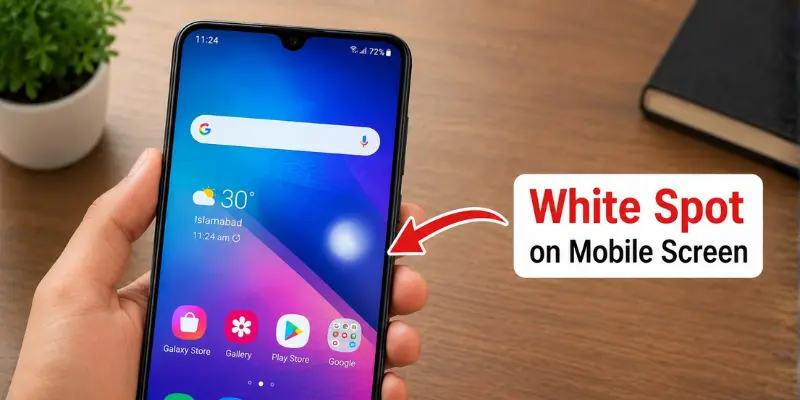
A white mark does not always mean the entire screen is damaged. It may be caused by dust under a screen protector, pressure on the display, moisture, damaged pixels, or an internal screen problem.
How Do White Spots Appear on a Phone Screen?
A display-related white spot usually stays in one position. It may become easier to see on white, gray, or black backgrounds and may change in intensity when you adjust the brightness.
If the mark is still visible after turning off the display, it may be on the screen surface or protector. A software button usually moves when touched or opens a menu.
How Is a White Spot Different from a Dead or Stuck Pixel?
These screen problems may look similar, but they differ in appearance, causes, and possible fixes.
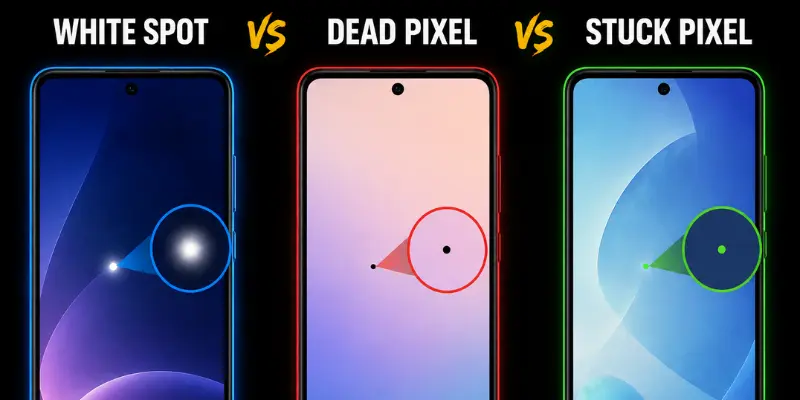
| Problem | What it looks like | Common cause | Can software fix it? |
|---|---|---|---|
| White spot | A cloudy or bright patch | Pressure, moisture, backlight, or display damage | Usually not |
| Dead pixel | A tiny black dot that does not light up | The pixel has stopped working | No |
| Stuck pixel | A red, green, blue, or white dot | The pixel remains fixed on one color | Sometimes |
In simple terms, a dead pixel stays black because it has stopped producing light, a stuck pixel remains fixed on one color, and a white spot usually appears as a larger bright patch caused by pressure or internal display damage.
Most Common Causes of White Spots on a Mobile Screen
White spots may appear because of surface issues, software features, or damage inside the display. Here are the most common causes and how each one affects the screen.
1. Pressure on the Display
Excess pressure can damage the internal screen layers and create a fixed bright or cloudy patch. This may happen when the phone is kept in a tight pocket, placed under a heavy object, dropped, bent, or used with a case that presses against the display.
2. Stuck or Damaged Pixels
A stuck pixel remains fixed on one color, while a damaged pixel may stop working properly. A single affected pixel usually appears as a small dot, but several damaged pixels together can form a larger white patch.
3. Screen Protector Bubbles or Trapped Dust
Air bubbles, dust, moisture, or damaged adhesive under a screen protector can look like white spots. These marks are often visible even when the display is turned off and may disappear after replacing the protector.
4. Software or Accessibility Features
Sometimes, the white dot is not screen damage. Android and iPhone devices may display touch indicators, floating buttons, or accessibility shortcuts that move, respond to touch, or disappear when the related setting is disabled.
5. LCD Backlight Damage
LCD screens use a light source behind the display. If the backlight or an internal layer becomes damaged, light may spread unevenly and create a bright spot on screen that usually cannot be fixed through software.
6. OLED Panel Damage
OLED screens do not use a separate backlight because each pixel produces its own light. Pressure, moisture, damaged pixels, or a panel fault can cause a fixed white or bright patch on an OLED display.
You may also like these posts
➡️ POLED vs AMOLED: Full Comparison Guide for Buyers
7. Moisture or Water Exposure
Rain, humidity, or liquid spills can enter the phone and affect the display layers or internal connections. This may cause white patches, flickering, colored lines, or touch problems.
8. A Swollen Battery
An old or damaged battery may swell and push against the display from inside the phone. If the screen is lifting, the back panel is bulging, or the phone feels unusually hot, stop using and charging it and arrange professional inspection.
You may also like these posts
➡️ Types of Mobile Phone Batteries Explained: Choose Wisely
9. Poor Screen Replacement or Previous Repair
A white spot may appear after a screen or battery repair because of a low-quality replacement panel, uneven adhesive, a bent frame, or an internal part pressing against the display. If the issue started soon after repair, return to the repair provider for inspection.
How to Fix White Spots on a Phone Screen at Home
Before replacing the screen, try these safe and simple methods to remove white spots on your mobile screen at home.
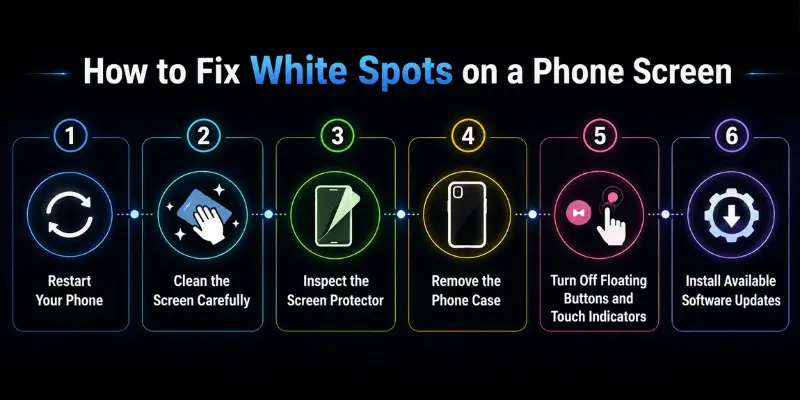
1. Restart Your Phone
Start by restarting the phone. A temporary software glitch, frozen display element, or floating button may disappear after the system reloads.
After restarting, open different apps and check whether the spot remains in the same position. If it disappears, the issue was likely software-related rather than physical screen damage.
2. Clean the Screen Carefully
Turn off the phone and disconnect the charger. Use a clean, dry microfiber cloth to gently wipe the display.
Dust, fingerprints, dried moisture, or cleaning residue can sometimes look like a white patch. Do not spray water, alcohol, or cleaning liquid directly onto the screen because moisture can enter the phone through small openings.
You may also like these posts
➡️ How to Clean a Mobile Phone Screen
3. Inspect the Screen Protector
Check the screen protector for trapped dust, air bubbles, scratches, cloudy adhesive, or lifted edges. These surface problems can look like white spots inside the display.
If the mark is visible while the screen is turned off, the protector may be responsible. Remove or replace a normal removable protector and inspect the screen again. Do not remove the factory-installed protective film from a foldable phone without checking the manufacturer’s instructions.
4. Remove the Phone Case
Remove the phone case and check whether it is pressing against the screen or bending the phone frame. A tight or poorly fitted case can create uneven pressure and cause a bright spot.
Leave the phone without the case for a while and check again. This may prevent further damage, but it may not remove a permanent pressure mark.
5. Turn Off Floating Buttons and Touch Indicators
Some white dots are caused by software features rather than screen damage. Check the Accessibility, Display, Convenience Tools, or Developer Options menu on your phone.
Look for settings such as:
- AssistiveTouch
- Show taps
- Touch indicator
- Quick Ball
- Assistant Menu
- Accessibility Menu
- Floating button
Turn off the relevant feature and check the screen again. A software dot usually moves, responds to touch, or opens a menu.

6. Install Available Software Updates
Go to the phone’s system settings and check for available software updates. An update may fix display glitches, interface problems, or bugs that cause unusual marks or overlays.
Restart the phone after installing the update. Keep in mind that software updates cannot repair dead pixels, pressure damage, water damage, or broken display layers.
7. Test the Screen With Different Colors
Open full-screen white, gray, black, red, green, and blue images. Keep the brightness at a medium level and observe the affected area.
This test can help you identify the problem:
- A mark visible on every color may be physical screen damage.
- A black dot may be a dead pixel.
- A red, green, blue, or white dot may be a stuck pixel.
- A cloudy bright patch may indicate pressure or backlight damage.
- A mark visible only in one app may be software-related.
Take a photo of the screen using another phone if you need evidence for a warranty or repair claim.
8. Check the Spot With a Screenshot
Take a screenshot while the white spot is visible. Send the screenshot to another phone or open it on a computer.
If the mark appears in the screenshot on the other device, the issue may come from an app, software overlay, image, or operating system. If the screenshot looks normal on the other device but the spot remains on your phone, the physical display is likely damaged.
Do not rely on viewing the screenshot only on the affected phone, because the screen defect will still appear over the image.
9. Try a Pixel-Refresh Tool Carefully
If the mark looks like a tiny red, green, blue, or white dot, it may be a stuck pixel. A pixel-refresh tool cycles through different colors and may help the pixel start responding normally.
Use this method for a limited time and stop if the phone becomes hot or the display starts flickering abnormally.
Pixel-refresh tools cannot repair:
- Dead pixels
- Large pressure spots
- LCD backlight damage
- OLED panel damage
- Moisture damage
- A swollen battery
People who are sensitive to flashing lights should avoid rapid pixel-refresh tests.
10. Perform a Factory Reset as a Last Resort
Try a factory reset only if the white spot appears to be software-related and the previous steps did not work. Back up your photos, contacts, messages, and other important data before resetting the phone.
After the reset, check the screen before reinstalling your apps. If the spot remains fixed in the same place, the issue is likely hardware-related, as a factory reset cannot repair damaged pixels, pressure marks, moisture damage, or internal display problems.
What Not to Do When Fixing a White Spot
Avoid online hacks that involve pressure, heat, liquids, or opening the phone because they can make the damage worse.
Do not:
- Massage or press the bright patch.
- Use a pen, stylus, or hard object on the screen.
- Twist, bend, shake, or hit the phone.
- Use a suction cup on the display.
- Apply heat with a hair dryer or heat gun.
- Spray water or cleaning liquid directly onto the screen.
- Open the phone without proper tools or repair experience.
- Perform a factory reset for an obvious physical screen problem.
- Press a lifted screen back into the frame.
When Should You Visit a Repair Center?
Visit a repair center if the white spot remains after trying the safe fixes or if it shows signs of internal screen damage.
Professional inspection is recommended when:
- The white spot is getting larger
- The screen flickers or changes color
- Lines appear across the display
- The battery appears swollen
- The touch screen stops responding properly
- The spot appeared after a drop or water exposure
- The screen is lifting from the frame
- The phone feels unusually hot
- The back panel is swollen or bulging
- The issue started after a previous screen repair
Back up your important data before taking the phone for repair whenever possible.
Contact the manufacturer, an authorized service center, or a trusted repair technician who provides a warranty on the repair.
Should You Repair the Screen or Replace the Phone?
Repairing the screen is usually the better choice if the phone still works well and the damage is limited to the display.
Consider repairing the screen if:
- The phone is fairly new
- The battery is still healthy
- The touchscreen and other features work properly
- The repair cost is much lower than the phone’s value
- Genuine or reliable replacement parts are available
Consider replacing the phone if:
- The device is old, slow, or frequently crashes
- The battery, frame, or other parts are also damaged
- The repair cost is close to the phone’s current value
- The phone has repeated screen or performance problems
- Reliable replacement parts are difficult to find
Compare the repair estimate with the phone’s age, condition, and current value before making a decision.
You may also like these posts
➡️ Renewed vs Refurbished Phones: 10 Key Differences Explained
How to Prevent White Spots on Your Mobile Screen
You cannot prevent every pixel or display failure, but careful use can reduce the risk.
- Do not carry the phone in an extremely tight pocket.
- Avoid sitting or placing heavy objects on it.
- Use a case that fits without pressing against the display.
- Keep the phone away from excessive heat and moisture.
- Do not overtighten phone holders, clamps, or mounts.
- Replace damaged or swollen batteries immediately.
- Use a trusted technician for screen and battery repairs.
- Inspect the display after any third-party repair.
- Avoid repeatedly pressing the same area of the screen.
- Follow the manufacturer’s instructions for foldable displays.
Conclusion
So guys, in this article, we’ve covered white spots on the mobile screen in detail. I recommend identifying the cause first instead of immediately replacing the display, as the problem may come from software settings, dust, or a screen protector. However, if the phone is overheating, swelling, or showing a lifting screen, stop using it and seek professional help.
Try the recommended steps and let us know which solution worked for you.
Frequently Asked Questions
Here are the answers to some common questions about white spots on a mobile screen.
It depends on the cause. A protector bubble or stuck pixel may remain stable, while pressure damage, moisture, or battery swelling can worsen over time. Monitor the spot with weekly photos, and seek repair if it grows, the screen lifts, the phone overheats, or touch and color problems appear.
Some white spots may disappear if they are caused by dust, a screen protector, or a temporary software issue. Spots caused by pressure, damaged pixels, or internal display problems usually do not go away on their own. Try the safe fixes first to see whether the spot changes.
No, a white spot and a dead pixel are different. A dead pixel usually appears as a tiny black dot because it no longer lights up. A white spot is often a larger bright or cloudy patch caused by pressure, moisture, or display damage.
Yes, trapped dust, air bubbles, scratches, or cloudy adhesive can create marks that look like white spots. These marks may remain visible when the screen is turned off. Removing or replacing the protector can help confirm whether it is the cause.
A white spot on an Android screen may come from a floating accessibility button, touch indicator, stuck pixel, pressure damage, or an internal display problem. If the dot moves or responds to touch, check settings such as Show taps, Assistant Menu, Quick Ball, or Accessibility Menu. A fixed spot that remains across every app is more likely related to the physical screen.
White dots on an iPhone screen may be caused by AssistiveTouch, a software glitch, damaged pixels, pressure, or moisture inside the display. If the dot moves or opens a menu, check the AssistiveTouch settings under Accessibility. If it remains fixed after restarting the iPhone, the display may need professional inspection.
Start by restarting the phone, cleaning the screen, checking the screen protector, and turning off any floating buttons or touch indicators. A pixel-refresh tool may help if the problem is a stuck pixel, but it will not fix pressure, moisture, or internal display damage. If the spot remains fixed or grows larger, have the phone inspected by a qualified technician.





- Be Respectful
- Stay Relevant
- Stay Positive
- True Feedback
- Encourage Discussion
- Avoid Spamming
- No Fake News
- Don't Copy-Paste
- No Personal Attacks
- Be Respectful
- Stay Relevant
- Stay Positive
- True Feedback
- Encourage Discussion
- Avoid Spamming
- No Fake News
- Don't Copy-Paste
- No Personal Attacks
