Power Saving Mode Guide: What It Is and How It Works
Published: 10 Jun 2026
Ever noticed your phone battery dropping fast when you are outside, traveling, watching videos, or using mobile data? At that time, many people quickly turned on Power Saving Mode to make the battery last longer.
Most phones have this feature, but many users do not fully understand what it actually does. Some people think it only reduces brightness, while others think it can damage the phone battery.
In this guide, you will learn what power saving mode in mobile phone means, how it works, when to use it, and whether it is good or bad for your phone. So, let’s dive in
What Is Power Saving Mode in Mobile Phones?
Power Saving Mode is a built-in feature that helps extend your phone’s battery life. When you turn it on, your phone automatically reduces or limits certain activities that consume a lot of power.
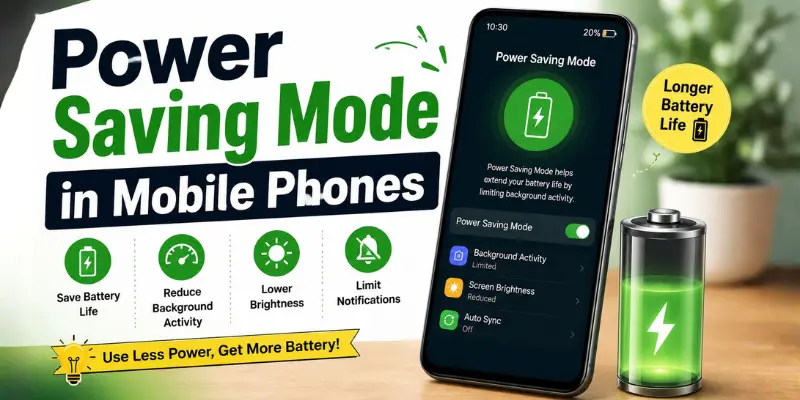
In simple terms, Power Saving Mode helps your phone focus on essential tasks while reducing unnecessary battery usage. It can limit background app activity, lower screen brightness, reduce syncing, and make other changes to save battery power.
Some smartphones also have Ultra Power Saving Mode, which saves even more battery power by limiting the phone’s functionality.
How Does Power Saving Mode Work?
Power saving mode works by reducing the phone features that use more battery. These features can include background apps, screen brightness, animations, internet syncing, location services, and processor speed.
When power saving mode is on, your phone may:
- Reduce background app activity
- Lower screen brightness
- Stop automatic app syncing
- Limit notifications from some apps
- Reduce phone performance slightly
- Turn off some visual effects
- Reduce location and background data use
- Turn off the always-on display on some phones
- Improve standby battery time
It does not create an extra battery. It simply helps your phone waste less battery.
What Happens When You Turn On Power Saving Mode?
When you turn on power saving mode, your phone may feel a little different. Apps may open slightly slower, some notifications may arrive late, and background updates may stop for a while.
Here is a simple overview:
| Feature | Effect of Power Saving Mode |
|---|---|
| Battery life | Lasts longer |
| Phone speed | May become slightly slower |
| Background apps | Limited |
| Notifications | May be delayed |
| Brightness | May reduce |
| Location services | May become limited |
| Gaming | May feel less smooth |
| Internet syncing | May slow down |
These changes are normal because the phone is trying to save battery.
Power Saving Mode on Android and iPhone
On Android phones, this feature is commonly known as Battery Saver or Power Saving Mode. Brands like Samsung, Xiaomi, Oppo, Vivo, Realme, OnePlus, and Google Pixel may show different names, but the purpose is the same.
On iPhone, this feature is called Low Power Mode. You can turn it on from:
Settings > Battery > Low Power Mode
On Android, the common path is:
Settings > Battery > Battery Saver / Power Saving Mode
You can also turn it on quickly from the notification panel or control center.
Power Saving Mode vs Ultra Power Saving Mode
Power Saving Mode and Ultra Power Saving Mode both help extend battery life, but they do not work in exactly the same way. Here is a simple comparison table:
| Feature | Power Saving Mode | Ultra Power Saving Mode |
|---|---|---|
| Battery saving | Medium | Very high |
| Apps | Most apps work | Only selected apps work |
| Phone use | Normal but limited | Very basic |
| Best for | Daily low battery | Emergency use |
Normal power saving mode is good for everyday use. Ultra power saving mode is best when your battery is very low and you only need calls, messages, or basic apps.
When Should You Use Power Saving Mode?
You should use power saving mode when your phone battery is low or when you cannot charge your phone soon.
Best times to use it:
- When the battery is below 20%
- During travel
- During long workdays
- When you are outside
- During emergencies
- When your phone battery drains fast
- At night, to reduce battery drain
- When using an old phone with weak battery health
Power saving mode is very useful when battery life is more important than phone speed.
When Should You Turn Off Power Saving Mode?
You should turn it off when you need full phone performance.
Turn it off when:
- Playing heavy games
- Recording important videos
- Using GPS navigation
- Waiting for urgent notifications
- Using video calls
- Downloading large files
- Using AR or VR apps
Power saving mode is helpful, but it may not be best for heavy tasks.
Is Power Saving Mode Good or Bad?
Power saving mode is good and safe for your phone. It does not damage your battery. It is a normal feature made by phone companies to help users save battery.
The only downside is that your phone may feel slower, and some apps may not refresh quickly. This is not a problem. It happens because the phone is reducing extra activity to save power.
Frequently Asked Questions (FAQs)
Here are the answers to some common questions about power saving mode in mobile phones:
No, power saving mode does not damage your battery. It is safe to use.
Yes, it can make your phone slightly slower because it reduces performance to save battery.
You can use it daily if you are a basic user. But for gaming, GPS, camera, and video calls, it is better to turn it off.
It may delay some notifications because background app activity is limited.
Power Saving Mode can help your phone last longer during gaming by reducing battery use. However, it may lower performance and cause games to run less smoothly. For the best gaming experience, it is better to keep it off unless your battery is low.
Conclusion
So guys, in this article, we’ve covered what is power saving mode in mobile phone in detail. Now you clearly understand how this feature helps your phone save battery and when it is most useful.
My personal advice is simple: use Power Saving Mode when your battery is low and you need extra backup, but turn it off when you want full speed and the best performance from your phone.
I hope this guide helped you—if it did, please share it with your friends and keep visiting our website for more easy mobile phone guides.






- Be Respectful
- Stay Relevant
- Stay Positive
- True Feedback
- Encourage Discussion
- Avoid Spamming
- No Fake News
- Don't Copy-Paste
- No Personal Attacks
- Be Respectful
- Stay Relevant
- Stay Positive
- True Feedback
- Encourage Discussion
- Avoid Spamming
- No Fake News
- Don't Copy-Paste
- No Personal Attacks
