Advantages and Disadvantages of Always-On Display : Complete Guide
Published: 18 Aug 2026
These days, many new smartphones come with a useful feature called Always-On Display (AOD). It keeps selected information, such as the time, date, battery level, and notification icons, visible on the screen even when your phone is locked. This allows you to check important information at a glance without fully waking your phone.
Like any other smartphone feature, Always On Display has both advantages and disadvantages. While it can make your phone more convenient to use, it may also use some extra battery, cause distractions, or raise privacy concerns.
In this guide, we’ll explore the advantages and disadvantages of Always On Display, explain how it works, and help you understand when you should keep AOD on and when it may be better to turn it off.
What Is Always On Display?
Always On Display, usually shortened to AOD, is a display feature that keeps a small part of your phone’s screen active while the device is locked.
Instead of showing a completely black screen, AOD may display information such as:
- Time and date
- Battery percentage
- Notification icons
- Missed calls
- Music information
- Lock screen widgets
- Wallpaper or background elements
For example, if your phone is lying on your desk, you can simply glance at the screen to check the time or see whether you have a new notification without picking up or unlocking the phone.
The exact features and customization options depend on your phone model, display technology, and operating system.
How Does Always On Display Work?
Always On Display is commonly used with OLED and AMOLED screens because these displays can control individual pixels. Unlike traditional LCD screens, OLED displays do not need a separate backlight. This allows the phone to light up only the pixels needed to show information such as the clock and notification icons, while most of the screen remains off.
This helps AOD use less power than keeping the entire display active. Modern smartphones can also lower the screen’s refresh rate while AOD is enabled to further reduce battery consumption.
For example, supported iPhones can lower the refresh rate to as little as 1 Hz in Always On Display mode. The display may also turn off completely in certain situations, such as when the phone is face down or inside a pocket, helping to save battery.
This is how Always On Display can keep useful information visible while using relatively little power.
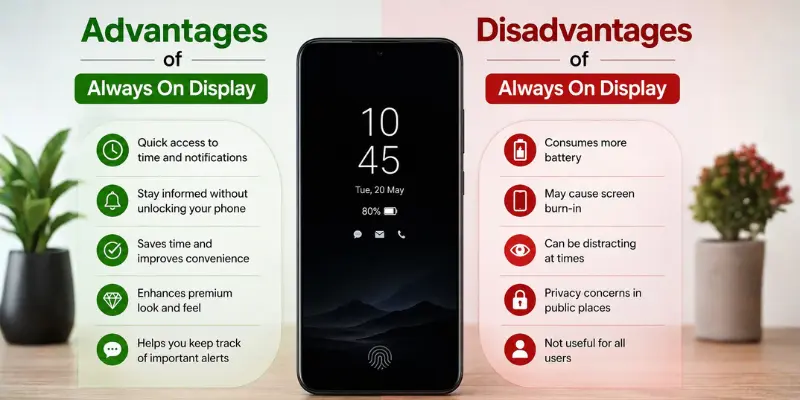
Advantages of Always-On Display
Always-On Display offers several practical benefits, especially for people who check their phones frequently.
1. Check the Time Without Waking Your Phone
One of the biggest advantages of Always-On Display is that you can check the time with a quick glance.
You do not need to:
- Press the power button
- Tap the screen
- Pick up the phone
- Unlock the device
This can be useful when your phone is sitting on a desk while you are working, studying, or attending a meeting.
2. See Notifications at a Glance
AOD can show notification icons while your phone remains locked.
For example, you may quickly see that you have received:
- A message
- An email
- A missed call
- A calendar reminder
- An app notification
This lets you quickly decide whether a notification needs your attention, so you can avoid unlocking your phone repeatedly just to check if anything new has arrived.
3. Quick Access to Useful Information
Always On Display is no longer limited to an ordinary digital clock. Based on the device used, it will show things like battery information, music information, widgets, event reminders, or even lock screen information.
This turns your locked phone into a small information screen, giving you quick access to useful details at a glance.
4. Offers More Personalization
Many smartphones allow you to customize the Always On Display. Depending on the model, you may be able to change:
- Clock style
- Clock color
- Wallpaper
- Widgets
- Notification display
- Screen orientation
- When AOD appears
There are a variety of customization choices for the AOD feature on smartphones; however, the available options may vary depending on the phone model and software version.
5. Can Be Scheduled or Shown Only When Needed
Always On Display does not have to remain active all day. On supported smartphones, you can control when it appears by scheduling it for specific times or choosing options such as Tap to Show or showing it only when you receive new notifications.
This gives you a useful balance between enjoying the convenience of AOD and reducing unnecessary battery use.
Disadvantages of Always On Display
Always On Display can be convenient, but it also has some drawbacks. Here are the main disadvantages to consider before keeping it enabled.
1. It Uses Extra Battery Power
One of the main disadvantages of Always On Display is that it uses some additional battery power. Although modern AOD systems are designed to be energy-efficient, keeping information visible on the display still requires some power.
The amount of battery used can vary depending on:
- Phone model
- Display technology
- AOD settings
- Brightness and visual elements
- How long AOD remains active
- Software optimization
If getting the longest possible battery life is your priority, turning AOD off can help reduce power consumption.
2. Notifications Can Become Distracting
AOD can make notifications easier to notice, but this can also become a distraction. Seeing a message or social media notification every time you look at your phone may encourage you to unlock it more often.
If you are trying to reduce screen time or stay focused while working or studying, a simple lock screen without visible notifications may be more helpful.
3. There Can Be Privacy Concerns
Always On Display may show notification icons or other information while your phone is sitting in a visible place. Someone nearby could potentially see notifications, caller information, or other details depending on your lock screen settings.
If privacy is important to you, you can adjust your notification settings to hide sensitive information or turn AOD off when necessary.
4. OLED Burn-In Can Be a Concern
Many AOD-enabled phones use OLED or AMOLED displays, which can experience image retention or burn-in when the same high-contrast elements remain in fixed positions for very long periods.
Modern smartphones use techniques such as moving or shifting AOD elements to reduce this risk. However, OLED displays can still be affected by long-term exposure to bright, static content. This means AOD does not automatically cause burn-in, but the risk is something to keep in mind.
5. It Is Not Useful for Everyone
Some people simply do not need Always On Display. If you usually keep your phone in a pocket, bag, face down, or away from your desk, you may rarely see the information displayed by AOD.
In such cases, turning the feature off can save some battery without taking away much convenience.
Does Always On Display Drain Battery?
Yes, Always On Display uses some battery, but the amount depends on your phone and its settings.
OLED and AMOLED screens can light up only the pixels needed to display information, while most of the screen remains off. Additionally, supported displays can use lower refresh rates than normal to reduce power consumption.
For instance, supported iPhones can lower the refresh rate to as little as 1 Hz when Always On Display is active.
Turning AOD off can help extend battery life. Google recommends disabling Always-On Display as one way to save battery on Pixel phones, while Samsung’s Power Saving Mode can also disable AOD.
So, the simple answer is:
AOD normally uses less power than keeping the full screen active, but turning the display completely off will still save more battery.
How to Reduce Always On Display Battery Use
If you like AOD but want to reduce its battery impact, you do not necessarily need to disable it completely.
Try these options if your phone supports them:
- Use Tap to Show so AOD appears only when you tap the screen.
- Schedule AOD for the hours when you normally use your phone.
- Show AOD only for new notifications if that option is available.
- Use a simple clock design instead of unnecessary visual elements.
- Use automatic AOD modes that turn the display off when the phone is in a pocket or dark location.
- Turn AOD off when battery is low or use your phone’s Power Saving or Battery Saver mode.
Should You Keep Always On Display On or Off?
Keep Always On Display turned on if you regularly check the time, notifications, battery level, or other information while your phone is sitting nearby.
Consider turning it off if:
- You want maximum battery life
- You find notifications distracting
- You rarely look at your locked phone
- You prefer a completely dark display
- You have privacy concerns
For many people, AOD does not have to be either fully on or completely off. You can also use available options to show AOD for new notifications, when you tap the screen, or during specific hours.
Conclusion
So guys, in this article, we’ve covered the pros and cons of Always On Display in detail. AOD makes it easy to check the time, notifications, battery status, and other useful information without fully waking your phone. However, it can also use extra battery, become distracting, and raise privacy concerns.
My recommendation is to keep AOD on if you regularly use it for quick access to information. If battery life, privacy, or fewer distractions are more important to you, turning it off or using a scheduled mode may be a better choice.
Now, adjust your AOD settings based on your needs and find the setup that works best for you.
Frequently Asked Questions (FAQs)
Here are the answers to some common questions about the benefits and drawbacks of Always On Display.
AOD can be worth using if you frequently check the time, notifications, or other information while your phone is nearby. It may be less useful if you prioritize maximum battery life or rarely look at your locked phone. The best choice depends on how you use your smartphone.
Yes, many smartphones offer several AOD customization options. Depending on the model, you may be able to change the clock style, colors, widgets, wallpaper, and when AOD appears. The available options vary by device.
Yes, many supported smartphones allow you to schedule when AOD appears. You may be able to set specific hours or use options such as showing AOD when you tap the screen or receive a notification. This can help balance convenience with battery use.
No, using AOD normally does not harm your phone. Modern smartphones use power-saving features and display techniques to reduce battery use and the risk of screen issues. However, the exact impact depends on the phone and its settings.
AOD does not automatically cause screen burn-in, but OLED displays can develop burn-in after prolonged exposure to static, high-contrast content. Modern phones use techniques such as shifting AOD elements to reduce this risk. Keeping the feature at a reasonable brightness can also help.





- Be Respectful
- Stay Relevant
- Stay Positive
- True Feedback
- Encourage Discussion
- Avoid Spamming
- No Fake News
- Don't Copy-Paste
- No Personal Attacks
- Be Respectful
- Stay Relevant
- Stay Positive
- True Feedback
- Encourage Discussion
- Avoid Spamming
- No Fake News
- Don't Copy-Paste
- No Personal Attacks
