How to Save Mobile Data on iPhone : 10 Easy Ways
Published: 17 Mar 2026
Managing mobile data on your iPhone matters. Too much use can cost you extra and drain your battery fast. Controlling it saves money, keeps apps smooth, and extends battery life.
iPhones use data quietly. Apps refresh in the background, iCloud uploads photos, and the App Store downloads updates automatically. These can eat your data without warning.
In this blog post, we will show you 10 simple ways to save mobile data on iPhone. It’s easy to follow and beginner-friendly. You’ll learn official Apple tips and real user hacks to take control. So let’s dive in.
What is Mobile Data and Why Does It Matter on iPhone?
Mobile data is the internet connection your iPhone uses when Wi-Fi is not available. It comes from your mobile carrier and lets you browse websites, use social media apps, stream videos, send messages, and download files anywhere.
Unlike Wi-Fi, mobile data is usually limited by your monthly plan. If you use too much data, your carrier may slow down your internet speed or charge extra fees. That’s why it is important to monitor how much data your iPhone uses.
10 Easy Ways to Save Mobile Data on iPhone
Saving mobile data on your iPhone is simpler than you think. Adjusting a few settings and adopting mindful habits can reduce data usage without sacrificing your favourite apps. Here are 10 practical ways to save mobile data.
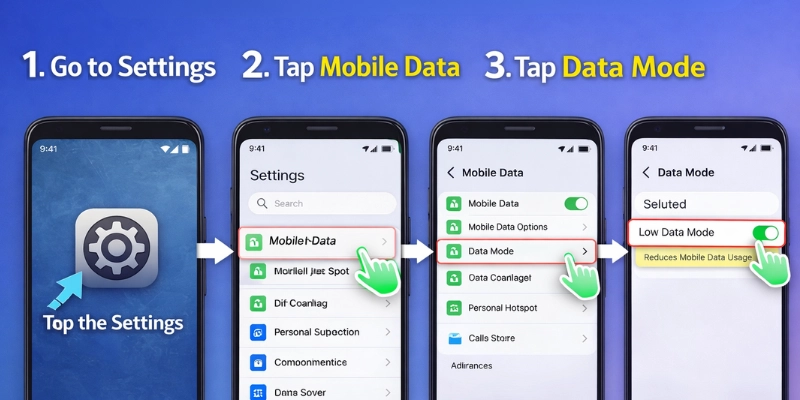
1. Enable Low Data Mode
Go to Settings > Mobile Data > Data Mode > Low Data Mode.
This pauses background activity and reduces streaming quality. Music apps stream lower quality, and apps don’t refresh automatically. You save mobile data daily without changing how you use your phone.
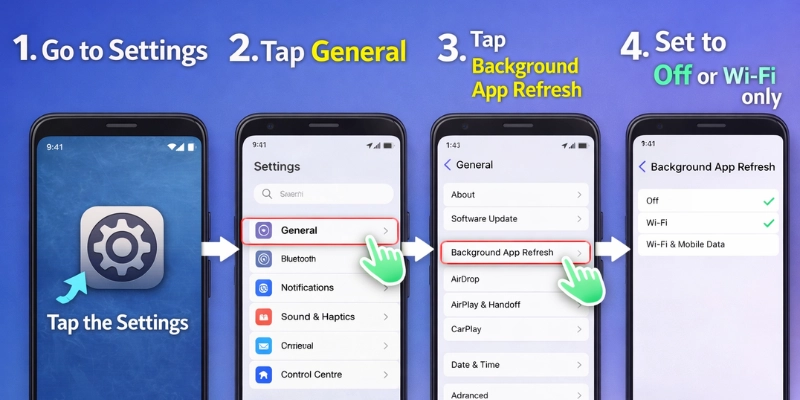
2. Turn Off Background App Refresh
Go to Settings > General > Background App Refresh, then set it to Off or Wi-Fi only.
Many apps like Facebook, Instagram, and news apps refresh content in the background. Turning this off prevents apps from using mobile data when you’re not actively using them.
3. Disable Wi-Fi Assist
Go to Settings > Mobile Data > Wi-Fi Assist, then turn it off.
Your iPhone won’t switch to mobile data when Wi-Fi is weak. This keeps your phone on Wi-Fi as long as possible.
4. Restrict iCloud Photos and Backups to Wi-Fi
Go to Settings > Photos > Mobile Data > Turn off Unlimited Updates.
iCloud uploads photos and backups over mobile data by default. Restricting it to Wi-Fi can save hundreds of MBs each month. For example, uploading 50 photos may use 100 MB of mobile data.
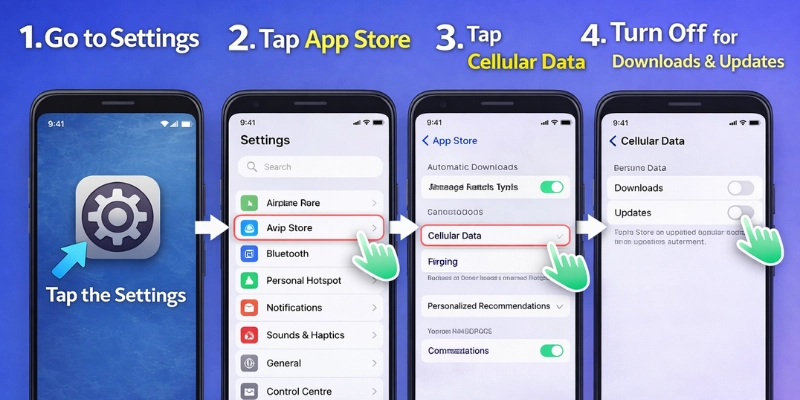
5. Limit App Store Downloads & Updates
Go to Settings > App Store > Cellular Data > Turn Off for Downloads & Updates.
Downloading apps or updates over mobile data can quickly eat up your plan. Updates now happen only on Wi-Fi.
6. Monitor Data Usage per App
Go to Settings > Mobile Data to see each app’s usage.
Turn off mobile data for high-usage apps like YouTube or Netflix. Restricting these to Wi-Fi helps you control data use.
7. Clear Safari History & Website Data
Go to Settings > Safari > Clear History and Website Data.
Safari saves browsing history and cached files on your iPhone. Clearing them helps keep browsing fast and can reduce unnecessary data loading.
8. Download Content for Offline Use
Save music, podcasts, and maps on Wi-Fi.
Apps like Spotify, Apple Music, and Google Maps allow offline use. Playing or navigating offline stops apps from using mobile data when you’re out.
9. Use Travel Mode or Offline Maps Abroad
Turn on Low Data Mode and download offline maps before travel.
Roaming data is expensive. Offline maps and media prevent surprise charges and save a lot of data.
10. Try User-Shared Hacks
Check forums like Reddit for small tricks.
Reduce video streaming quality, turn off auto-play in social apps, or use low-data mode in specific apps. These tweaks save hundreds of MBs over time.
Advanced Tips and Expert Tricks
Once you’ve mastered the basics, small extra steps can save even more mobile data. These tips mix Apple’s official advice with tricks real users swear by.
1. Disable Auto-Play Videos in Apps
Social media apps often play videos automatically. These auto-play videos can quickly consume a large amount of data.
Go into the app’s settings and turn off autoplay—this simple tweak can save hundreds of MBs each month.
2. Control Push Notifications That Require Data
Some notifications load images or videos. Turn off or limit alerts for apps that don’t need instant updates.
Go to Settings > Notifications and manage each app’s style to reduce data use.
3. Set App-Level Low-Data Preferences
Many apps have built-in data-saving modes. Streaming apps often let you lower video quality when on mobile data.
Check each app for a “low-data” or offline mode and switch it on.
Conclusion
Now you know how to save mobile data on your iPhone. Control which apps use data, limit background activity, and download music, podcasts, or maps for offline use. These simple tricks protect your data, save money, and keep your iPhone running smoothly.
Start using these tips today to manage your data usage. Track your consumption, combine methods, and adjust app settings to maximise savings. Every adjustment moves you closer to your targets.
Frequently Asked Questions (FAQs)
Here are the answers to some common questions about how to save mobile data on iPhone :
Go to Settings > Mobile Data on your iPhone. Scroll down to view the list of apps with their data usage, then turn off mobile data for any apps that use too much.
With Low Data Mode, your iPhone reduces background activity and lowers streaming quality. You’ll still use apps as usual, but your device saves mobile data in the background without interrupting you.
Yes, iMessages use mobile data when Wi-Fi is not available. Text messages use very little data, but sending photos or videos can consume much more. Regular SMS messages do not use mobile data.
Use Low Data Mode and download offline maps, music, and podcasts before your trip. Turn off iCloud syncing on mobile networks to avoid uploads. This prevents roaming charges and saves data.
Yes, go to Settings > App Store and turn off cellular data for App Downloads and Updates. Updates will then happen only on Wi-Fi. This saves data for apps you use the most.
Yes, many streaming and social media apps have low-data or offline modes. For example, Spotify, YouTube, and Instagram allow you to reduce streaming quality or download content. Enabling these features saves mobile data without limiting app use.






- Be Respectful
- Stay Relevant
- Stay Positive
- True Feedback
- Encourage Discussion
- Avoid Spamming
- No Fake News
- Don't Copy-Paste
- No Personal Attacks
- Be Respectful
- Stay Relevant
- Stay Positive
- True Feedback
- Encourage Discussion
- Avoid Spamming
- No Fake News
- Don't Copy-Paste
- No Personal Attacks
