How to Save Mobile Data on Android: 10 Easy Tips
Published: 30 Mar 2026
Mobile data can run out quickly on Android phones, often without you even noticing. Background apps, auto-updates, and video streaming can silently use your data, leading to extra costs and slower performance.
The good news is that Android has simple tools and settings to help you control your data usage. By making a few smart changes, you can reduce data consumption without affecting your daily activities.
In this guide, you will learn 10 easy and practical tips to save mobile data on Android, avoid unnecessary charges, and keep your phone running smoothly. So, let’s dive in.
Why Saving Mobile Data is Important
Before learning how to save mobile data, it’s helpful to understand why managing it is important. High data usage can lead to several issues on your Android phone:
- Extra Charges: Uncontrolled data usage can quickly exceed your plan limits, leading to unexpected costs.
- Slower Phone Performance: Apps that constantly use data in the background can make your phone slow and unresponsive.
- Battery Drain: Continuous data consumption takes more battery, causing your phone to run out of power faster.
- Weak Network Issues: In areas with poor coverage, high data use can slow your internet speed and cause buffering while streaming or downloading.
Managing your mobile data helps you save money, improve device performance, and stay in control wherever you are.
10 Easy Ways to Save Mobile Data on Android
Saving mobile data on Android is easier than you think. With a few simple changes, you can make your data last longer and keep your phone running smoothly. Here are 10 practical tips to save data without affecting your daily use.
3.1 Enable Data Saver Mode
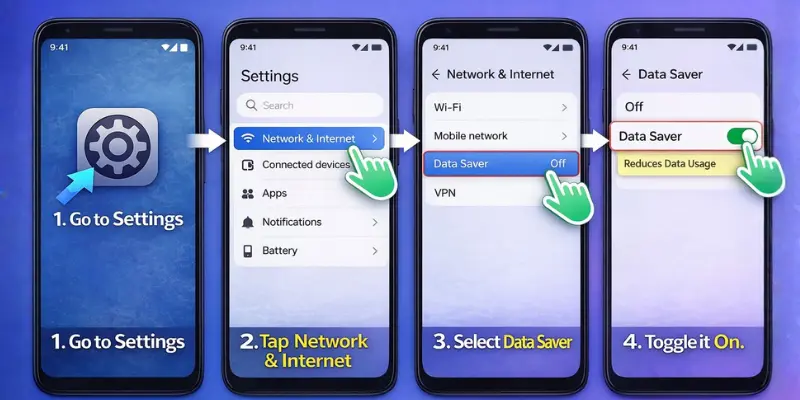
Turning on Data Saver limits background app activity, cutting unnecessary data use instantly.
Steps:
- Open Settings.
- Tap Network & Internet.
- Select Data Saver.
- Toggle it On.
Benefits:
- Stops apps from eating data in the background.
- Prevents auto-sync and updates.
- Works on mobile data and Wi-Fi.
3.2 Restrict Background Data for Apps
Limiting app background activity saves data and avoids surprises on your bill.
Steps:
- Settings > Connections > Data Usage.
- Tap Mobile Data Usage.
- Select the app to restrict.
- Turn off Allow Background Data Usage.
Benefits:
- Stops apps from consuming data when not in use.
- Gives you control over app usage.
- Reduces overall mobile data consumption.
3.3 Set Mobile Data Limits
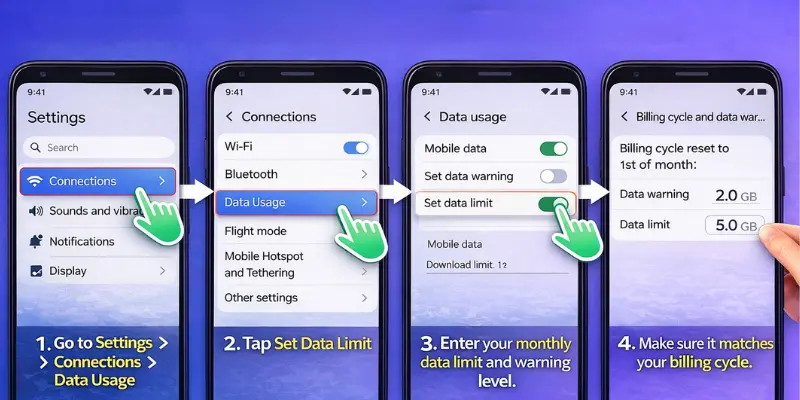
Setting a data limit helps you stay within your plan and avoid extra charges.
Steps:
- Go to Settings > Connections > Data Usage.
- Tap Set Data Limit.
- Enter your monthly data limit and warning level.
- Make sure it matches your billing cycle.
Benefits:
- Avoid extra charges by staying under your plan limit.
- Easily track your data usage throughout the month.
- Get alerts when you are close to reaching your limit.
3.4 Disable Auto-Updates for Apps
Auto-updates can quickly use your mobile data. Choosing Wi-Fi-only updates helps you save data.
Steps:
- Open the Google Play Store.
- Tap menu > Settings > Auto-update apps.
- Select Over Wi-Fi only.
Benefits:
- Stops unwanted updates.
- Gives you control over downloads.
- Saves data by updating only on Wi-Fi.
3.5 Use Lite Versions of Apps
Lite versions of apps use less mobile data while still offering the main features you need.
Examples:
- Facebook Lite
- Messenger Lite
- Instagram Lite
- Twitter Lite
Benefits:
- Reduce data usage significantly.
- Works faster on older devices.
- Perfect for limited data plans
3.6 Enable Offline Mode for Maps and Media
Downloading content in advance helps you save mobile data while using your phone on the go.
Steps for Maps:
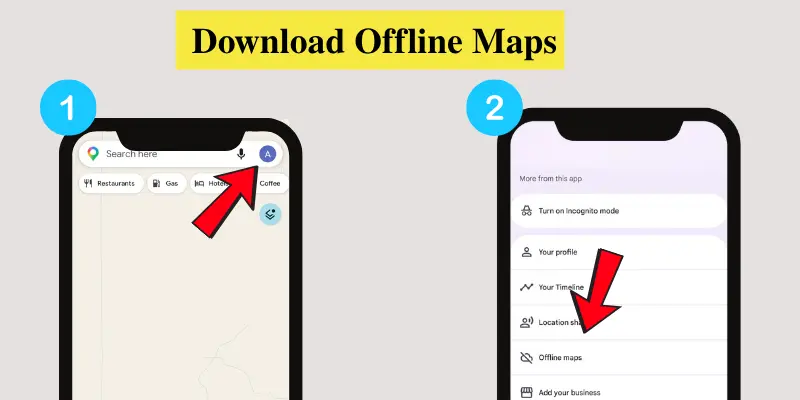
- Open Google Maps.
- Tap your profile picture at the top right.
- Select Offline maps.
- Choose the area you want to download and save it for offline use.
Steps for Media:
Download songs or videos on Spotify or YouTube for offline play.
Benefits:
- Saves data by reducing streaming.
- Reliable access offline.
- Perfect for travel or poor connectivity.
3.7 Lower Video Streaming Quality
Reducing the video quality helps you save mobile data while still enjoying your favorite videos.
Steps:
- Open YouTube or Netflix.
- Go to Settings > Video Quality/Data Usage.
- Choose a lower resolution, like 480p instead of 1080p.
Benefits:
- Significantly reduce data usage while streaming.
- Smooth playback on slow networks.
- Extend your monthly plan.
3.8 Turn Off Auto-Sync for Apps
Turning off auto-sync stops apps from constantly using mobile data in the background.
Steps:
- Go to Settings > Accounts.
- Tap each app and toggle off Auto-sync.
Benefits:
- Stop apps from using data automatically when you’re not using them.
- Reduce background data consumption.
- Helpful for email, social media, and other apps that update frequently.
3.9 Use Wi-Fi for Large Downloads
Large files can quickly use up your mobile data, so it’s better to download them using Wi-Fi.
Steps:
- Connect to a Wi-Fi network before downloading apps, updates, or large files.
- Set apps to download content only on Wi-Fi by default.
Benefits:
- Save mobile data for important tasks.
- Download files faster with a stable connection.
- Avoid unnecessary data usage on large downloads.
3.10 Clear App Cache Regularly
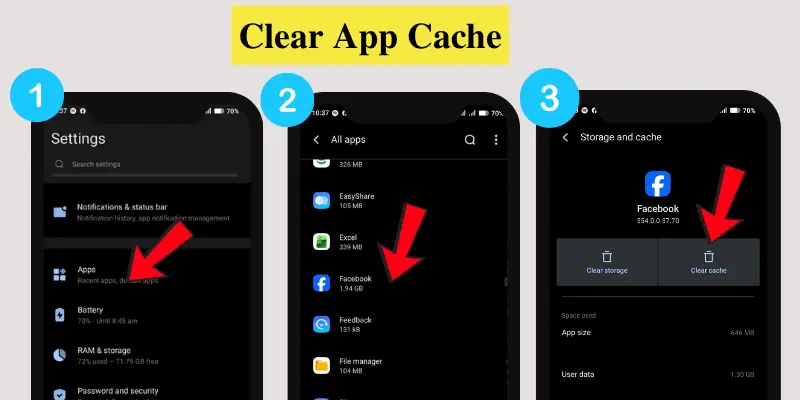
Clearing app cache helps free up storage and reduces unnecessary data usage.
Steps:
- Go to Settings > Apps.
- Select the app you want to clean.
- Tap Storage > Clear Cache.
Benefits:
- Free up storage space on your phone.
- Reduce unnecessary data usage by removing old files.
- Improve overall phone performance.
Common Mistakes to Avoid When Saving Mobile Data
It’s smart to save cell data, but a few mistakes can make things worse. Be careful of these common mistakes so that your work really counts.
1. Turning Off Mobile Data Too Frequently
Mobile data can be wasted if it is turned off all the time. You might miss important calls, texts, and alerts. Apps often connect all at once when you turn data back on, which uses more data than before.
- How to Avoid: Use Data Saver mode instead. It limits background activity but keeps you connected.
2. Over-Restricting Background Data
Restricting too many apps can stop important updates from working properly. Apps like email, messaging, and weather need to be updated regularly. If you block them, you might miss important messages, notifications, or real-time updates.
- How to Avoid: Only restrict background data for non-essential apps like games or social media. Keep important apps active so they can update on time.
3. Not Checking Data Usage Regularly
Not checking your data usage regularly can lead to unexpected charges. Even when certain features are turned off, some apps may still use data in the background. If you don’t monitor your usage, you might exceed your data limit without realizing it.
- How to Avoid: Check Settings > Data Usage at least once a week. Turn on data alerts to get notified when you are close to your limit.
4. Ignoring App-Specific Data Settings
System-wide Data Saver doesn’t control every app. YouTube, Spotify, and Google Maps have their own data options. Without adjusting them, you might still use too much data.
- How to Avoid: Check app settings. Reduce video quality, use offline maps, or download songs for offline playback.
5. Relying Too Much on Lite Apps
Lite apps help save data, but they may limit features and reduce quality. You might miss some functions or lower video quality.
- How to Avoid: Use Lite apps when needed, and switch to full versions on Wi-Fi for a better experience.
6. Forgetting to Clear Cache Regularly
Cached data can silently eat your data allowance. Apps refresh their cache automatically, consuming extra data.
- How to Avoid: Clear caches periodically, especially for frequently used apps. Use reminders if needed.
Conclusion
Saving mobile data on Android helps you save money and keep your phone running smoothly. Using Data Saver, limiting background apps, downloading on Wi-Fi, and clearing app caches are simple ways to control data usage effectively.
Check your data regularly and adjust app settings to make the most of your plan.
Start these habits today for a smoother, more cost-friendly Android experience.
Frequently Asked Questions (FAQs)
Here are the answers to some common questions about how to save mobile data on Android:
To check your data usage on Android, go to Settings > Network & Internet > Data Usage. This section shows your total mobile data usage and allows you to monitor specific apps. You can also set alerts and data limits to help you stay within your plan.
Android has Data Saver mode, which restricts background data for applications. It makes sure apps only use data when you open them, and that may assist in saving data on the mobile. It can be enabled in the Settings > Network & Internet > Data Saver.
You can go to your phone Settings and open the Data Usage or Mobile Data section. Then choose the app you want and turn off the background data option. This stops the app from using the internet in the background and helps you save mobile data and battery.
Yes, lighter apps are specially made to use less data and storage. They load faster and work well even on slow internet connections. These apps remove extra features and focus only on basic functions, which helps save data.
Go to Settings, then open Apps and select the app you want. Tap on Storage and press Clear Cache to remove temporary files. This can make the app run smoother and sometimes reduce unnecessary data usage.






- Be Respectful
- Stay Relevant
- Stay Positive
- True Feedback
- Encourage Discussion
- Avoid Spamming
- No Fake News
- Don't Copy-Paste
- No Personal Attacks
- Be Respectful
- Stay Relevant
- Stay Positive
- True Feedback
- Encourage Discussion
- Avoid Spamming
- No Fake News
- Don't Copy-Paste
- No Personal Attacks
