Proximity Sensor in Mobile Phones: Complete Beginner Guide
Published: 13 May 2026
Ever notice your phone screen turning black during a call and thought something was wrong with it? Don’t worry, this is completely normal and happens because of a small feature called the proximity sensor. It helps your phone detect when your face or ear is close to the screen during calls.
In this blog post, we’ll explain what a proximity sensor in mobile phones is, how it works, where it is located, its common uses, and how to fix problems if it stops working properly. So, let’s get started
What Is Proximity Sensor in Mobile Phones?
A proximity sensor is a small sensor in mobile phones that detects when your face, ear, hand, or another object comes close to the phone’s display. It is usually located near the earpiece, front camera, or top speaker area.
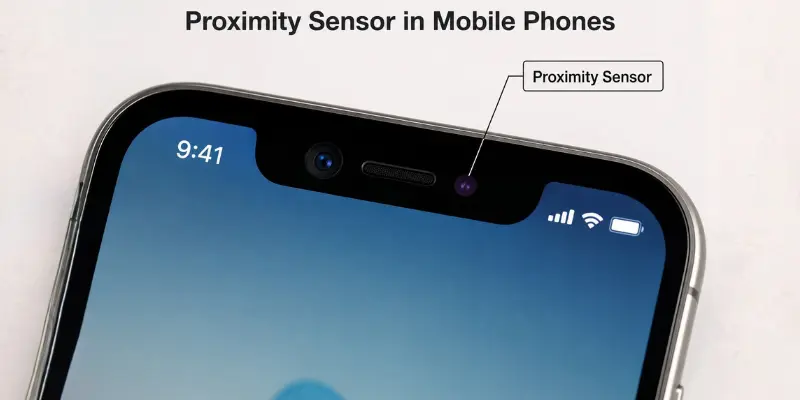
The main purpose of the proximity sensor is to turn off the screen automatically during phone calls when the phone is near your ear. This helps prevent accidental touches on buttons like mute, speaker, keypad, hold, or end call while talking.
When you move the phone away from your ear, the proximity sensor detects the change in distance and automatically turns the screen back on.
Where Is the Proximity Sensor Located in Mobile Phones?
The proximity sensor is typically found around the top of the phone. It is near the earpiece, front camera, or top speaker in most phones.
In some phones, the sensor appears as a small black dot near the front camera. However, in modern smartphones with thin bezels or full-screen displays, the proximity sensor may be hidden under the display or behind the top glass area, making it difficult to see.
Common Locations
The proximity sensor can be found:
- Near the earpiece.
- Beside the front camera.
- Near the top speaker.
- Under the display.
- Behind the top glass area.
The exact location depends on the phone model. Samsung, Xiaomi, iPhone, and other Android phones may place it in slightly different areas.
Common Uses of Proximity Sensors in Smartphones
Proximity sensors improve smartphone usability in several ways:
- Prevent Accidental Touches: Stops accidental presses on buttons like mute, speaker, keypad, or end call during calls.
- Save Battery: Turns off the screen to reduce power consumption.
- Improve Call Experience: Automatically disables the touchscreen without requiring manual action.
- Automatic Screen Control: Turns the display off and on depending on proximity to your face.
Even though it is a small component, the proximity sensor plays an important role in making phone calls more convenient and reliable, especially during long conversations or hands-free use.
Types of Proximity Sensors Used in Mobile Phones
Mobile phones use different types of proximity sensors to detect nearby objects and automatically control the screen during use. Each type works in a slightly different way.
1. Infrared (IR) Proximity Sensor
The infrared (IR) proximity sensor is the most commonly used type in smartphones. It uses infrared light to detect when an object, like your face, is near the screen. It is mainly used during phone calls to automatically turn the screen off and prevent accidental touches.
2. Capacitive Proximity Sensor
A capacitive proximity sensor detects nearby objects by sensing changes in the electrical field around the screen. It is sometimes used in slim or modern devices for touch or presence detection. It helps the phone respond when something comes close without physical contact.
3. Laser / ToF (Time of Flight) Sensor
Laser or ToF sensors are found in high-end smartphones. They measure the time it takes for light to bounce back from an object to detect distance. These sensors are often used for advanced features like AR (Augmented Reality) and gesture recognition.
4. Ultrasonic Sensor
Ultrasonic proximity sensors use sound waves to detect nearby objects. They are rarely used in mobile phones but may appear in rugged or specialized devices. They are known for working well in different lighting conditions.
Even though these sensors work differently, their main purpose is the same — to detect nearby objects and improve the user experience.
Proximity Sensor vs Other Mobile Sensors
Mobile phones have multiple sensors, each serving different purposes. Among them, the proximity sensor has a unique and focused function, mainly for call-related usability. Here’s a quick comparison with other common sensors:
| Sensor Type | Primary Function | Impact on Calls | Notes |
|---|---|---|---|
| Proximity Sensor | Detects nearby objects (face/ear) | Turns off screen during calls | Prevents accidental touches; saves battery |
| Ambient Light Sensor | Adjusts screen brightness based on light | None | Improves visibility and battery life |
| Accelerometer | Detects motion and phone orientation | None | Used for screen rotation, gaming, and navigation |
| Gyroscope | Measures rotation and angular motion | None | Enhances motion tracking in apps and games |
Common Proximity Sensor Problems in Mobile Phones
Proximity sensors usually work properly, but sometimes they may cause issues during phone calls. Here are some common problems:
- Problems caused by cases or screen protectors: Thick cases or poorly fitted screen protectors may interfere with the sensor.
- Screen stays on during calls: The sensor fails to detect your face, causing accidental touches.
- Screen stays black after calls: The phone thinks something is still near the screen, so the display does not turn back on.
- Screen does not wake up: A blocked sensor or software issue may keep the display inactive.
- Accidental touches during calls: Buttons like mute, speaker, or keypad may get pressed unintentionally.
- Delayed screen response: The display may take a few seconds to turn on or off when moving the phone near or away from your face.
- Inconsistent sensor behavior: The sensor may work sometimes and fail at other times due to software or app issues.
How to Fix Proximity Sensor Problems
If your proximity sensor is not working properly, don’t worry. In most cases, it is a small issue and can be fixed easily at home. Try these simple solutions one by one.
- Clean the top area of your phone: Dust, oil, or fingerprints near the earpiece or front camera can block the sensor. Clean it gently with a soft, dry cloth.
- Remove the screen protector or tempered glass: A thick or low-quality glass can cover the sensor area and stop it from working properly. Remove it and check again.
- Take off the phone case: Some phone covers block the top sensor area. Remove the case and test the sensor during a call.
- Restart your phone: A simple restart can fix temporary software bugs that affect the sensor.
- Update your phone software: Go to settings and install the latest system update if available. Old software can cause sensor issues.
- Test in safe mode: Some third-party apps can interfere with the sensor. Safe mode helps you check if an app is causing the issue.
- Reset phone settings (last option): Reset system settings if nothing works. This will restore default settings without deleting your personal data.
- Visit a repair center: If the issue still continues, the sensor may be damaged. In this case, professional repair is the best option.
Conclusion
So guys, in this article, we’ve covered what a proximity sensor in mobile phones is in detail. From its working process to its types, problems, and fixes, you now have a complete understanding of how this smartphone sensor works.
My personal recommendation is to regularly clean the sensor area of your phone and keep your software up to date to avoid unexpected sensor issues. A properly working proximity sensor can make phone calls smoother, safer, and more convenient.
If you found this guide helpful, keep visiting our website for more easy-to-understand mobile phone guides and tips.
Frequently Asked Questions (FAQs)
Here are the answers to some common questions about the proximity sensor in mobile phones:
Yes, water damage can affect the sensor and stop it from working correctly. The phone may show issues like the screen staying black or not turning off during calls. In serious cases, professional repair may be required.
Yes, almost all modern smartphones include a proximity sensor. Some phones use physical sensors, while others use virtual or software-based sensors. The technology may vary depending on the phone brand and design.
A proximity sensor detects nearby objects near the screen during calls. An ambient light sensor adjusts screen brightness based on surrounding light conditions. Both sensors improve the overall smartphone experience in different ways.
This can happen when the sensor still detects something close to the screen. Dirt, screen protector issues, software bugs, or hardware damage can cause this.
Most phones do not provide a direct option to turn off the proximity sensor because it is built into the phone’s calling and display system.





- Be Respectful
- Stay Relevant
- Stay Positive
- True Feedback
- Encourage Discussion
- Avoid Spamming
- No Fake News
- Don't Copy-Paste
- No Personal Attacks
- Be Respectful
- Stay Relevant
- Stay Positive
- True Feedback
- Encourage Discussion
- Avoid Spamming
- No Fake News
- Don't Copy-Paste
- No Personal Attacks
