How to Use Your Mobile Phone as an AC Remote (5 Easy Steps)
Published: 2 Mar 2026
Today, there are so many electronics and remote controls at home that it can be hard to keep track of them all. If you’ve ever spent time looking for your AC remote and couldn’t find it, you’re not alone! The good news is that you can use your cell phone as the AC remote.
This blog post of us will guide you in detail on how to use your phone as a remote, helping you save time, space, and even batteries. We’ll keep things simple, whether you are new to using technology or already know about it.
Let’s learn how to use your phone to control your AC easily. This will make your life easier!
What You Need to Use Your Mobile Phone as an AC Remote
Find out which things and important points you should need to know about using your mobile as remote of the AC.
1.IR Blaster (Infrared)
To turn your phone into an AC remote, you’ll need an IR (infrared) blaster. This is a small part inside your phone that lets it send signals to your air conditioner, just like a regular remote. The IR blaster sends out invisible light that your air conditioner can detect.
Many older phones have this feature so that you can use your phone without doing anything extra. If your phone does not have an IR blaster, don’t worry — you can buy a small external one and connect it easily.
2. Smartphone Apps
Many apps on your smartphone allow you to use your phone as an AC remote. Some popular ones are:
- AnyMote: This app works with many devices, including air conditioners.
- Mi Remote: Easy to use, especially for Xiaomi phones, but also works with other brands.
- Samsung SmartThings: This one works well with Samsung phones and lets you control your air conditioner and other smart gadgets.
3. Compatibility
Before you start, it’s important to check if your AC works with these apps. Newer ACs that have Wi-Fi or infrared sensors usually work well with these apps. But if you have an older AC that doesn’t have smart features, it might not work with every app.
How to Set Up Your Mobile Phone as an AC Remote
Setting up your mobile phone as an AC remote is simple and quick. Follow these 5 easy steps to connect your device and start controlling your air conditioner directly from your phone.
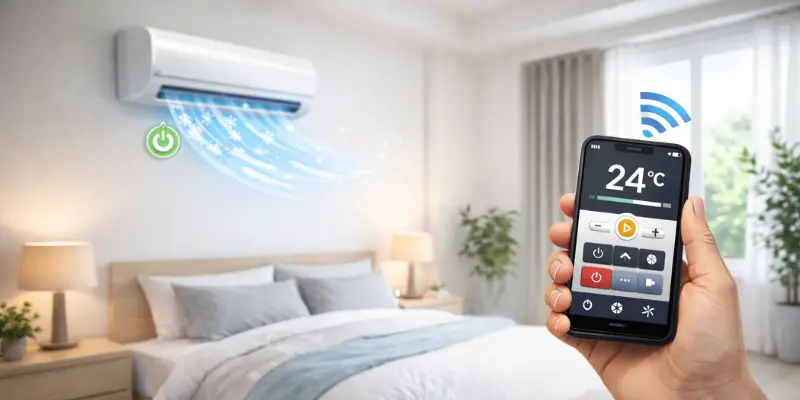
Step 1: Check if your phone has an IR blaster or get a compatible app.
The first step is to check if your phone has an IR blaster. If it does not, you can buy a small IR blaster for your phone or use an app that works with Wi-Fi or Bluetooth. Make sure your phone is set up and ready!
Step 2: Download and install the app (like AnyMote or Mi Remote).
The next step of making it is to choose an app that works with your phone.
For example, AnyMote works with many devices, and Mi Remote is good for Xiaomi phones. Go to the App Store or Google Play Store, find the app you need, and install it on your phone.
Step 3: Open the app and set up your AC.
After you set up the app, open it and follow the easy steps to add your air conditioner. You will see a list of AC brands and models to pick from. The app will help you through each step.
Step 4: Connect the app to your AC and test it.
Connect the app to your AC after adding it. Then, you can try using the controls. From your phone, you can change the temperature, adjust the fan speed, or turn the AC on and off.
Step 5: Add shortcuts for quick access.
You can add shortcuts to your phone’s home screen for things you do often, like turning the AC on or off or changing the temperature. This lets you make changes quickly with just a tap.
Common Mistakes to Avoid
When you use your mobile phone as an AC remote, certain common mistakes can prevent it from working properly. Below are the most common issues and their easy solutions.
1. Not syncing the app with the AC properly
If you do not set up the app the right way, you will not be able to control your AC.
- Solution: Make sure to follow the app setup instructions carefully and select the correct brand and model of your AC.
2. Using your phone from too far away or at the wrong angle
The IR signal does not work well if you are too far away or if your phone is not pointed at the AC.
- Solution: Always point your phone directly at the AC’s sensor and stay within the recommended distance.
3. Installing unverified apps that could harm your phone
Some apps might not work right or could harm your phone.
- Solution: Stick to trusted apps like AnyMote, Mi Remote, or Samsung SmartThings from the official app store to keep your phone safe and ensure the app works well.
4. Forgetting to update the app
If you do not update the app, it might stop working well or get slow.
- Solution: Regularly check for updates in the app store to make sure it runs smoothly.
5. Not clearing the app cache or data when it stops working
Sometimes apps can freeze or stop working. Not restarting the app can make it worse.
- Solution: If the app stops working, try clearing the cache or reinstalling it to make it work again.
6. Not having a stable Wi-Fi connection (for smart ACs)
If your AC uses Wi-Fi and your phone has a weak signal, the controls might not work well.
- Solution: Make sure both your phone and AC are connected to the same strong Wi-Fi network for smooth control.
7. Forgetting to turn off battery-saving modes
Battery-saving modes can stop the app or IR blaster from working properly.
- Solution: Turn off battery-saving modes when using the app to avoid problems while controlling your AC.
Tips for Effective Use of Your Mobile Phone as an AC Remote
To get the best results while using your mobile phone as an AC remote, follow these simple and practical tips.
- Keep your app and phone updated to fix bugs and improve performance.
- Point your phone directly at the AC sensor when using an IR blaster.
- Make sure nothing blocks the infrared signal for smooth operation.
- Create shortcuts for common settings like temperature or power on/off.
- Turn off battery saver mode while using the remote app.
- Use a stable Wi-Fi connection if your AC works through smart control.
Conclusion
Congratulations! You’ve learned how to use your phone as an AC remote by following the steps in this guide. Now, you can control your AC easily, without having to look for the remote or press many buttons.
You can change the AC temperature and settings right from your phone, making things much easier and more comfortable.
Want to learn more smartphone tricks like this? Explore our other helpful guides and make your smartphone even smarter!



- Be Respectful
- Stay Relevant
- Stay Positive
- True Feedback
- Encourage Discussion
- Avoid Spamming
- No Fake News
- Don't Copy-Paste
- No Personal Attacks
- Be Respectful
- Stay Relevant
- Stay Positive
- True Feedback
- Encourage Discussion
- Avoid Spamming
- No Fake News
- Don't Copy-Paste
- No Personal Attacks
