How to Turn Off Data Roaming on iPhone and Android Devices
Published: 14 Jan 2026
Traveling internationally is exciting, but it often comes with the shock of high roaming charges. If you’re looking to avoid those fees and keep your bill under control, you’re in the right place!
In this article, we’ll show you how to turn off data roaming on different devices, save on roaming charges, and explore alternatives to stay connected without the high costs. So, let’s dive in.
What is Data Roaming and Why Should You Turn It Off?
Data roaming occurs when your mobile phone connects to a network outside yourhome carrier’s coverage area, typically when traveling abroad. While this allows you to stay connected, it can come with heavy charges. You may be charged for using mobile data, making calls, or sending texts, even though you’re still using your regular phone number.
To avoid these unexpected costs, it’s important to turn off data roaming while traveling. By doing so, you prevent unwanted data usage and save yourself from extra fees that can quickly add up when your phone connects to networks with high roaming rates.
How to Turn Off Data Roaming on Your Device
Turning off data roaming is a simple but important step to avoid unwanted charges while traveling. Below, we’ve provided easy, step-by-step instructions for different devices to help you stay in control of your mobile data.
1. How to Turn Off Data Roaming on iPhone
If you’re using an iPhone, the process is quick and straightforward. Here’s how to do it:
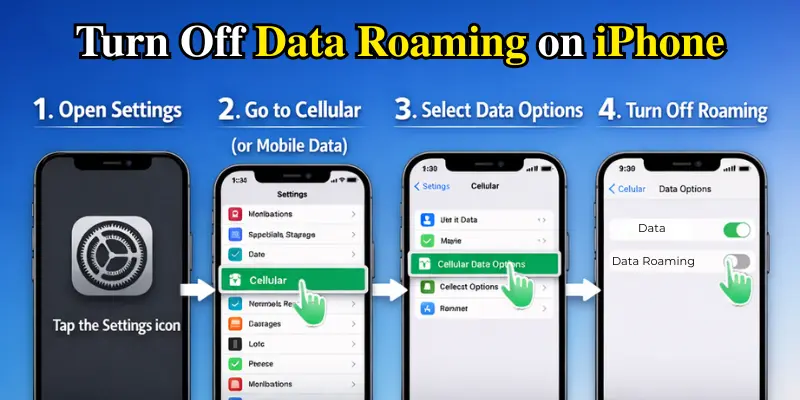
- Open the Settings app: Find the Settings icon on your iPhone and tap on it to open the settings menu.
- Tap on Cellular (or Mobile Data): Scroll down and tap on Cellular (if you’re using an older iOS version, this might be labeled Mobile Data).
- Tap on Cellular Data Options: In the Cellular menu, select Cellular Data Options. This section lets you adjust how your phone handles mobile data usage, including roaming settings.
- Turn off Data Roaming: In the Cellular Data Options section, you’ll see a setting called Data Roaming. Simply toggle this switch to the off position.
- For Dual SIM Users: If you have a dual SIM configuration, make sure to check both SIM options in the Cellular Data Options menu to ensure roaming is disabled on both lines.
By following these simple steps, you’ll prevent your iPhone from automatically connecting to international networks and avoid unexpected data charges.
2. How to Turn Off Data Roaming on Android
Turning off data roaming on Android devices is also easy, though the steps may differ slightly depending on the manufacturer or version of Android you’re using. Here’s a general step:

1. Go to Settings: Open the Settings app on your Android phone, usually by tapping the gear icon on your home screen or in the app drawer.
2. Tap on Network & Internet (or Connections): In the Settings menu, look for the section labeled Network & Internet (on newer Android versions) or Connections (on older ones).
| Tip: |
|---|
If you can’t find Data Roaming in your settings, use the search bar at the top of the Settings menu. Type “Data Roaming” and tap the result to go directly to the setting. This makes it quick and easy to find! |
3. Tap on Mobile Network: Under Network & Internet or Connections, tap on Mobile Network. This is where you manage your mobile data settings.
4. Turn Off Data Roaming: You’ll now see an option for Data Roaming. Turn this setting off to prevent your smartphone from automatically connecting to roaming networks.
5. For Different Android Devices: If you have a Samsung, BlackBerry, or Google Pixel phone, the processes may differ slightly, but the general steps are the same. You may find ‘Mobile Network‘ or ‘Data Roaming‘ under slightly different names. Simply look for any option related to data roaming or network settings, and make sure it’s turned off.
By following these steps, your Android device will stop using data while roaming, saving you from expensive charges.
Implications of Turning Off Data Roaming
Now that you know how to turn off data roaming, let’s quickly discuss what could happen when you do so.
- Call/Text Limitations: If you disable roaming, you may not be able to receive calls or text messages in some cases, especially if your carrier doesn’t offer international roaming coverage.
- Limited Data Access: You’ll need to rely on Wi-Fi to access the internet. However, this can be a good thing if you want to prevent unintentional data usage.
So, while turning off data roaming is a good way to reduce charges, be mindful of how it may affect your communication or internet access when abroad.
Alternative Solutions to Avoid Roaming Charges
If you want to stay connected without paying expensive roaming fees, there are some great alternatives you can consider.
- Using Local SIM Cards: A cost-effective solution is buying a local SIM card when you arrive at your destination. Local SIM cards usually offer affordable data plans, allowing you to use your phone just like a local resident. They are available at airports, stores, or mobile provider shops.
- eSIM Options: Another solution is eSIM, a digital SIM that allows you to activate a cellular plan without using a physical SIM card. Many carriers offer international eSIM data plans, including services like Airalo and Truphone, providing global coverage without the need to swap SIM cards.
Conclusion
Turning off data roaming is a simple yet highly effective way to save money while traveling internationally. By following these easy steps for your device, you can avoid unexpected charges. Additionally, exploring alternatives like local SIM cards or eSIM plans can help you stay connected without spending too much.
Remember, whether you’re traveling for business or pleasure, managing your mobile data wisely will help you avoid unnecessary costs and ensure you enjoy your trip without any unexpected phone bills.
Frequently Asked Questions (FAQs)
Here are the answers to some common questions about how to turn off data roaming :
To activate data roaming in Ncell, go to your phone’s Settings and tap on Mobile Network. Find Data Roaming and turn it on. You may need to contact Ncell customer service or visit their store for specific instructions, depending on your plan.
You can find roaming settings in the Mobile Network section of your phone’s settings. On Android, go to Settings > Network & Internet > Mobile Network. On iPhone, go to Settings > Cellular > Cellular Data Options, where you’ll find the Data Roaming option.
Roaming means using your mobile phone outside your carrier’s home network, typically when you’re traveling internationally. When you’re roaming, your phone connects to local networks, and you may be charged extra fees for data, calls, and texts.
You can usually buy local SIM cards at airports, mobile provider shops, or local stores in most countries. Some countries also have kiosks or vending machines at popular tourist spots. It’s a cost-effective way to stay connected while avoiding roaming fees.
Roaming settings usually stay unchanged, but internet speed and costs may differ in each country. Always verify roaming agreements and make sure your phone is compatible with local networks.




- Be Respectful
- Stay Relevant
- Stay Positive
- True Feedback
- Encourage Discussion
- Avoid Spamming
- No Fake News
- Don't Copy-Paste
- No Personal Attacks
- Be Respectful
- Stay Relevant
- Stay Positive
- True Feedback
- Encourage Discussion
- Avoid Spamming
- No Fake News
- Don't Copy-Paste
- No Personal Attacks
