How to Use a Mobile Phone: Easy Steps for First-Time Users
Published: 25 Sep 2025
If you’ve just bought your first mobile phone or are ready to learn, this guide is for you. From teenagers to seniors, many people feel confused about using a new smartphone.
Don’t worry—here you’ll learn how to set up your phone, make calls, send messages, go online, install apps, and stay safe, all in a simple, supportive, and step-by-step style so anyone, even someone who has never touched a mobile phone before, can easily follow
Step 1: Identify Your Phone Type
Before you begin, you should know what kind of phone you have. Most phones today are either:
- Android Phones (brands like Samsung, Huawei, Oppo, Vivo, Xiaomi, etc.)
- iPhones (made by Apple)
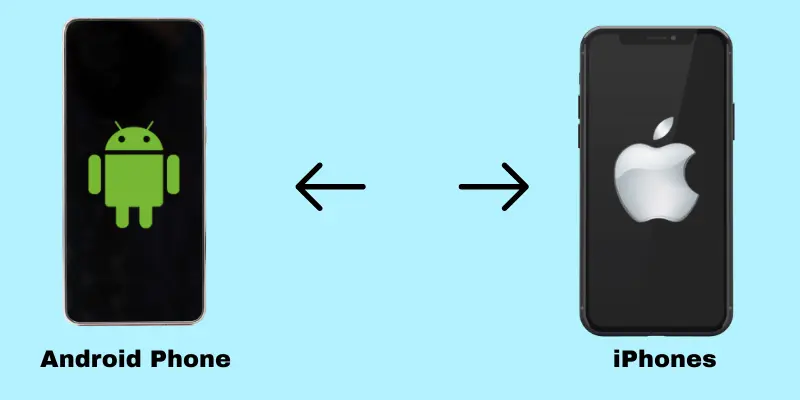
How to check your phone type:
- Look at the back of your phone—iPhones always have an Apple logo.
- If you see brand names like Samsung, Oppo, or Vivo, then it’s an Android.
- You can also go to Settings > About Phone to confirm.
👉 Why this matters: Android and iPhone are slightly different, but the basic functions (calling, texting, using apps) are very similar.
Step 2. Set Up Your Mobile Phone for the First Time
It’s simple to set up your new phone! Simply follow these steps after opening the box.
1. Unbox and Charge
Take your phone, charger, and accessories out of the box. Plug your phone into a power source using the provided charger. Let it charge for at least 30 minutes before setup so the battery doesn’t run out midway.
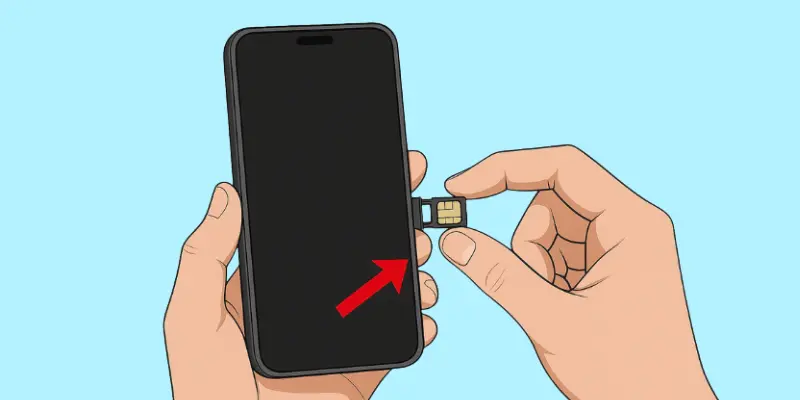
2. Insert the SIM Card
Locate the SIM tray (a small slot with a tiny hole next to it). Use the SIM ejector tool or a paperclip to press into the hole and pop the tray out. Place your SIM card in the tray, matching the shape, and gently push it back in until it clicks.
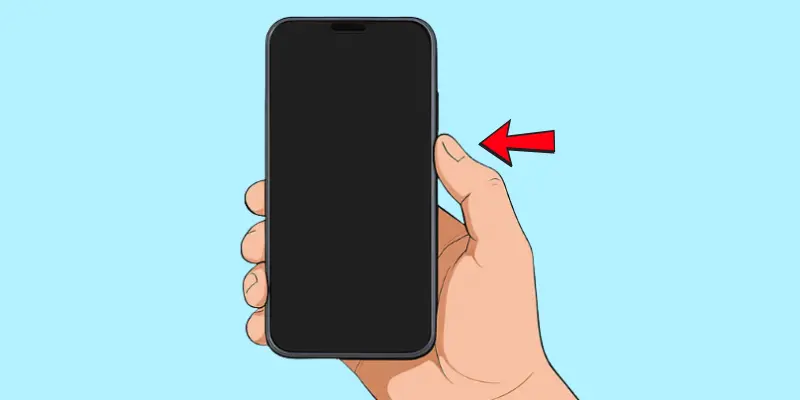
3. Turn On Your Phone
Press and hold the power button (usually on the side or top). Keep holding until the screen lights up and the brand logo appears. This may take a few seconds—be patient.
4. Choose Your Language and Region
When you turn on your phone for the first time, the setup will begin. The first screen usually asks you to select your language and region. Scroll through the list and pick the ones you understand best (most people choose English (United States)).
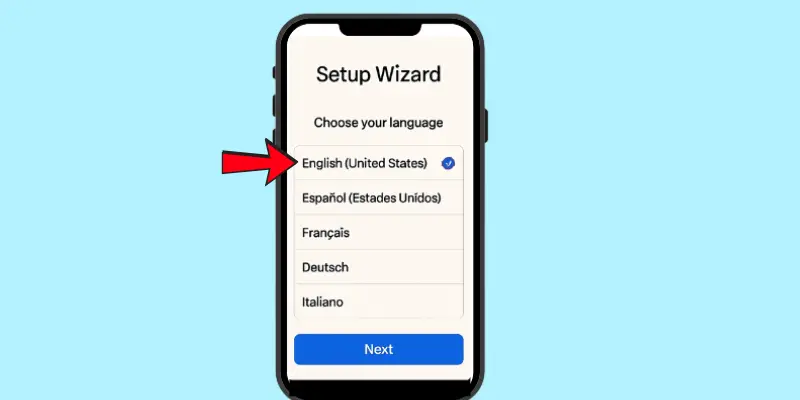
👉 This step makes sure that all menus and instructions on your phone appear in a language you’re comfortable with.
5. Connect to the Internet
Now your phone will ask you to connect to the internet. You have two choices:
1. Wi-Fi (recommended)
- Tap on your home Wi-Fi network name.
- Enter the Wi-Fi password (usually written on the back of your Wi-Fi router).
Once connected, your phone can download updates quickly and safely.
2. Mobile Data (through your SIM card)
- But remember: mobile data uses your SIM package and may cost money.
👉For beginners, Wi-Fi is the better option during setup.
6. Sign In or Create an Account
- Android phones: You’ll be asked to sign in with your Google account (Gmail). Enter your email and password. If you don’t have one, tap on Create Account and make a new Gmail account—it’s free.
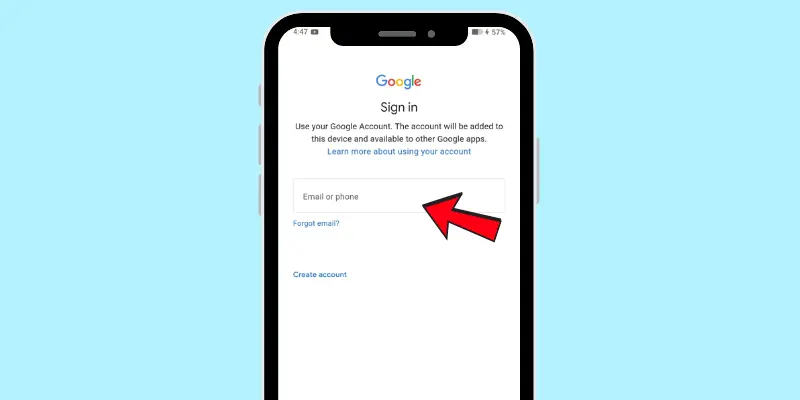
- iPhones: You’ll need an Apple ID. Enter your Apple ID and password. If you don’t have one, tap “Create Apple ID” and create a new one.
👉 This account is very important. It allows you to download apps, back up your contacts and photos, and keep your data safe.
7. Set Up Security (Password/Lock)
Your phone will now ask you to protect it. You can choose from:
- PIN – A 4 or 6-digit number.
- Password – A word or number that only you know.
- Pattern lock (Android) – Drawing a simple shape on the screen.
- Fingerprint unlock – Using your finger on the sensor.
- Face unlock – Using your face to open the phone (on newer models).
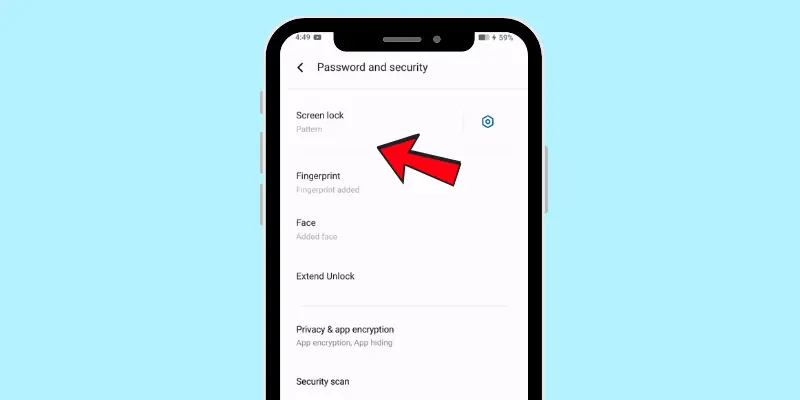
👉 Setting up security is very important. It keeps your personal information safe if your phone is lost or someone else tries to use it.
After completing these steps, your phone will be ready to use!
Step 3: Learn the Basics (Home Screen & Navigation)
Once your phone is ready, you’ll see the home screen. This is the main screen where your apps and shortcuts appear.
1. Touch Screen Gestures
Smartphones work through a touchscreen. Here are the basic moves you’ll use every day:
- Swipe up/down: Move your finger up or down the screen to scroll through pages, menus, or apps.
- Tap: To open an app or choose an option, quickly tap the screen once.
- Long press (hold down): Touch and hold your finger on an app icon. This usually lets you move the app, delete it, or see more options.
- Pinch in/out: Place two fingers on the screen and move them apart to zoom in, or closer together to zoom out (helpful in photos or maps).
👉 Don’t worry if it feels strange at first—these gestures quickly become second nature.
2. Volume & Brightness Controls
Your phone has easy ways to adjust sound and screen brightness:
- Volume: Use the side buttons to make the sound louder or quieter. You can control ringtone volume, media (music/video), and call volume.
- Brightness: Swipe down from the top of the screen (Android) or from the top-right corner (iPhone) to open the quick settings menu. Here you’ll see a brightness slider you can drag left (dimmer) or right (brighter).
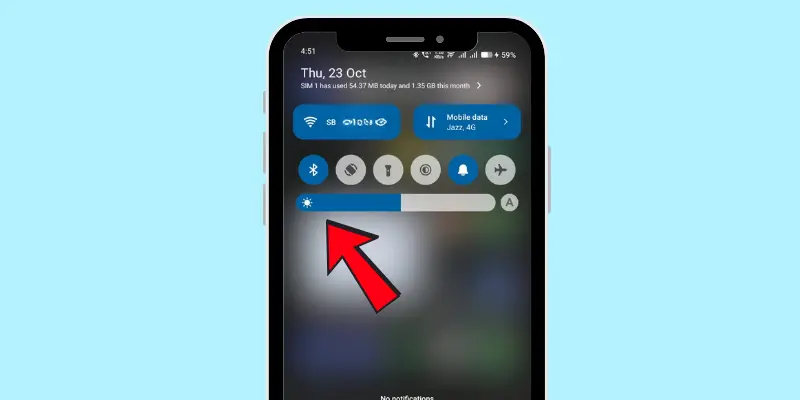
👉 Lowering brightness saves battery life and is easier on your eyes, while higher brightness helps in sunlight.
3. Notifications
Notifications are little alerts your phone gives you, like text messages, missed calls, app updates, or reminders.
- On Android, swipe down from the very top of the screen to see notifications.
- On iPhone, swipe down from the top-center or left.
- Tap a notification to open it, or swipe it away if you want to clear it.
👉 This way, you’ll never miss a call, message, or update.
Step 4: Calling & Texting
One of the main reasons people use a mobile phone is to make calls and send messages. Here’s how you can do both, step by step:
1. Making a Call
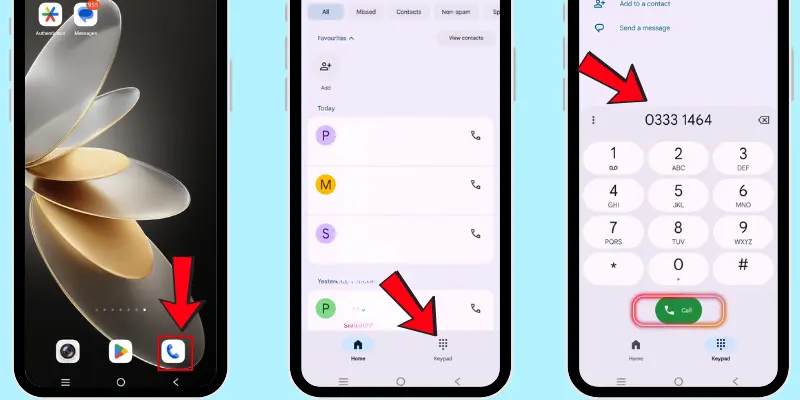
- Look for the Phone app (usually a white icon with a blue phone symbol).
- Tap it to open.
- You’ll see a dial pad and contact options.
- To call someone new, type their number on the dial pad and press the call button (green circle with a phone).
- To call someone saved, tap Contacts, choose their name, and press the call button.
- To end the call, tap the red button.
| 💡 Tip : |
|---|
If the person doesn’t answer, you can try again later or leave a voicemail (if available). |
2. Sending a Text Message (SMS)
- Find the Messages app (it usually looks like a chat bubble).
- Tap the + or New Message button.
- Type the phone number or pick a contact.
- Write your message using the keyboard.
- Tap Send (usually a paper plane or arrow icon).
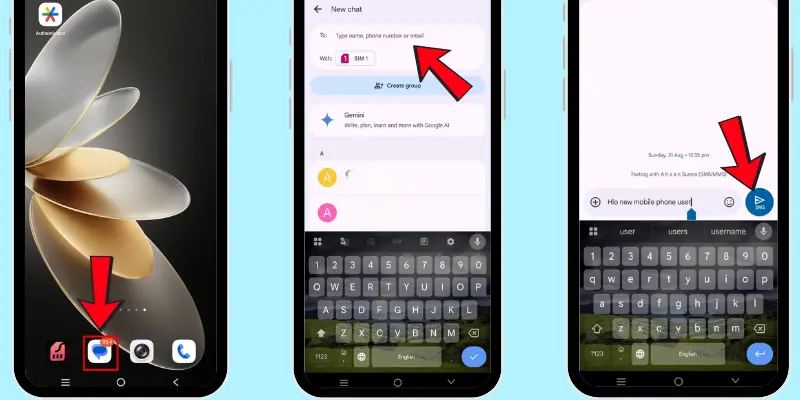
👉 SMS may cost money depending on your mobile plan, but if you’re on Wi-Fi, you can use free apps like WhatsApp, Messenger, or iMessage (iPhone).
3. Receiving Calls and Messages
When someone calls you, your screen will light up with two buttons:
- Green to answer.
- Red to decline.
When you get a message, you’ll see a notification. Swipe it to open and read.
Step 5: Connect to the Internet
Modern phones allow you to go online almost anywhere. You can connect in two main ways:
1. Wi-Fi (Recommended)
Best for home, offices, cafés, or any place with free internet.
- To connect: Swipe down (Android) or from the top-right corner (iPhone), tap the Wi-Fi icon, and select your network.
- Enter the Wi-Fi password (usually written on your router) to connect.
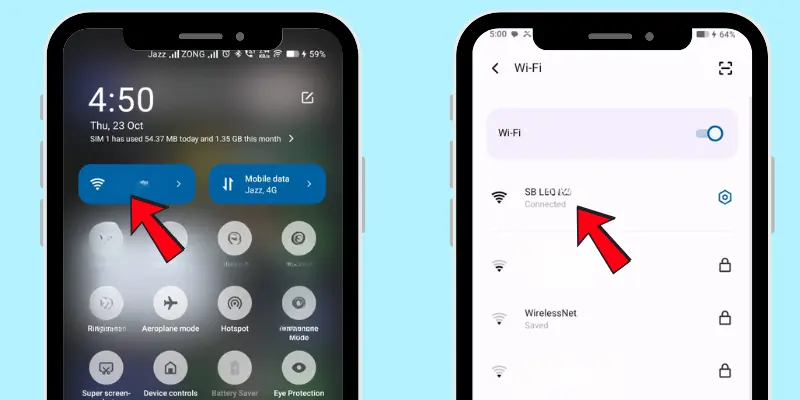
If you’ve inserted a SIM card, you can use mobile data.
👉 Wi-Fi is faster and doesn’t use your mobile balance.
2. Mobile Data (Through SIM Card)
This uses your mobile company’s network.
- To turn on: Swipe down (Android) or top-right (iPhone) and tap the Mobile Data icon.
- Remember, mobile data is part of your SIM plan and may cost money.
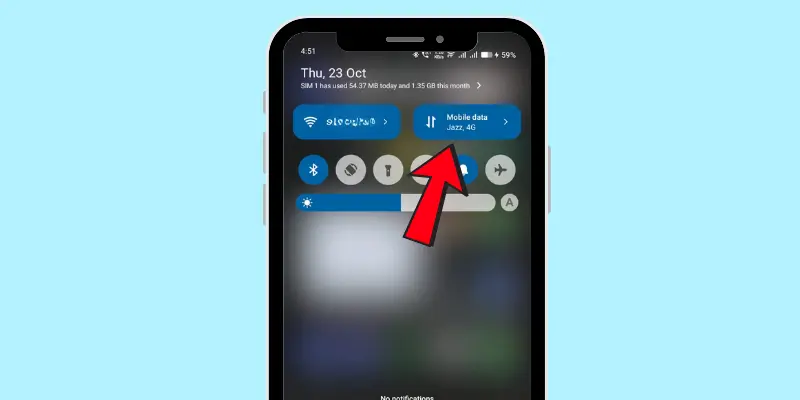
Once connected, you can browse websites, watch videos, download apps, and chat with friends.
| 💡 Tip : |
|---|
If your data finishes too quickly, go to Settings > Data Usage (Android) or Settings > Mobile Data (iPhone) to see which apps are using the most data (like YouTube, Facebook, or TikTok). |
Step 6: Install and Use Apps
Apps (short for applications) are small programs that make your phone useful. With them, you can chat, watch videos, connect with friends, shop, or manage your bank account.
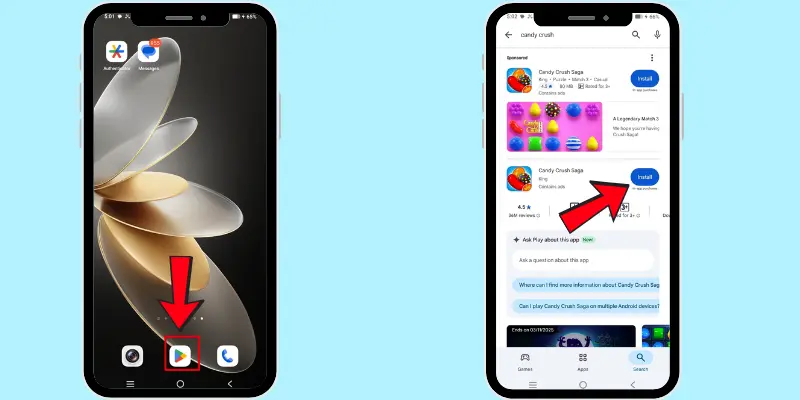
For Android Phones
- Open the Google Play Store (colorful triangle icon).
- Type the app name in the search bar (e.g., WhatsApp).
- Tap the app → Tap Install.
- The app will appear on your home screen.
For iPhones
- Open the App Store (blue icon with a white “A”).
- Type the app name in the search bar.
- Tap the app → Tap Get.
- The app will download to your home screen.
Once installed, tap the app’s icon on your home screen to open it anytime.
Always download apps from the official Play Store (Android) or App Store (iPhone). This keeps your phone safe from viruses or harmful apps.
Step 7: Using the Camera & Photos
One of the most exciting parts of a smartphone is its camera. You can capture moments, record videos, and save memories right from your phone.
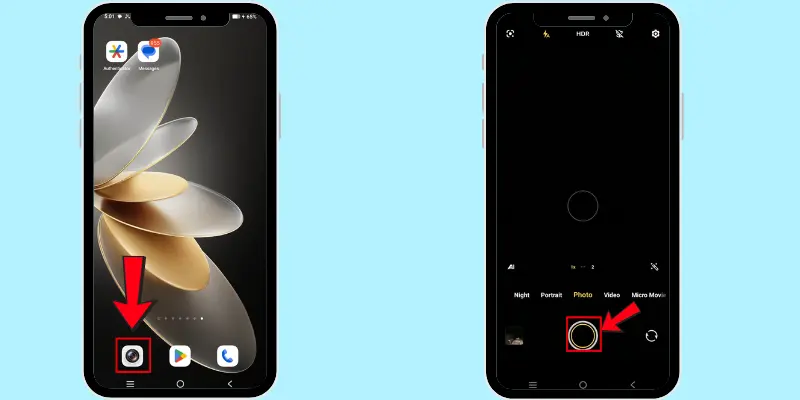
- Open the Camera app – The icon usually looks like a small camera. Tap it to open.
- Take a photo – Hold your phone steady, aim the camera at what you want to capture, and tap the big white circle at the bottom of the screen.
- Record a video – In the Camera app, switch to Video mode (look for the word “Video” at the bottom). Tap the red circle button to start recording, and tap it again to stop.
- View your photo & video – After capturing, tap the small thumbnail in the corner of the screen or swipe left. This will open your latest photo or video so you can watch or review it.
- Manage your photos & videos – Open the Gallery app (Android) or Photos app (iPhone) to see all your pictures and videos. From there, you can share them, edit them, or delete the ones you don’t want to keep.
| 💡 Beginner Tip: |
|---|
Don’t worry about filters or advanced settings right now. Just practice taking simple photos and short videos. The more you use the camera, the easier it will feel. |
Step 8: Make Your Phone Easier to Use (Accessibility)
If your phone feels complicated, you can adjust settings to make it easy.
- On Android – Go to Settings > Display > Font Size to increase text, or turn on Simple Mode/Launcher for larger icons and a cleaner layout.
- On iPhone – Go to Settings > Accessibility > Display & Text Size to enlarge or bold text for easier reading.
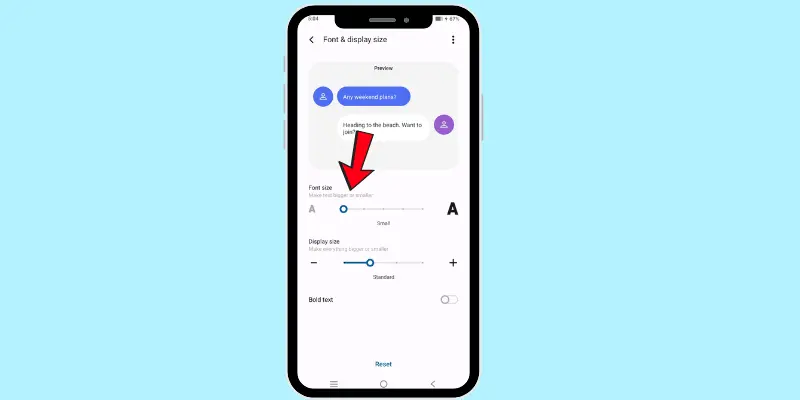
These features are especially helpful for seniors or anyone who prefers bigger text and simple screens.
Common Mobile Phone Problems and Fixes
Sometimes, your phone may not work as expected. Don’t worry! These are common problems that many people face, and they’re easy to fix.
1. The phone is frozen or not responding
If your screen gets stuck and nothing works, press and hold the power button for 10–15 seconds until the phone restarts. This usually solves the problem.
2. App not working properly
If an app crashes or won’t open, first close and reopen it. If that doesn’t help, go to the App Store/Play Store and check for updates. Updating often fixes bugs.
3. Storage is full
When your phone says storage is almost full, delete unused apps, old photos, or videos. You can also move your files to Google Drive (Android) or iCloud (iPhone) to free up space.
4. Battery drains too quickly
If your battery runs out quickly, try reducing the screen brightness, closing apps that are running in the background, and turning off Wi-Fi, Bluetooth, or GPS when not in use.
5. The phone is running slowly
If your phone feels laggy, restart it to refresh its memory. Also, clear extra files or cache, and make sure your phone is updated to the latest software version.
These simple steps solve most daily problems, and you don’t need to be an expert to try them.
Safety & Privacy Tips for Using a Mobile Phone
Your phone holds a lot of personal information, so it’s important to use it safely. Here are some key points to keep in mind:
- Use a lock screen: Always set a PIN, password, fingerprint, or face unlock so no one else can access your phone.
- Download apps safely: Only use the Google Play Store (Android) or App Store (iPhone) to download apps. Avoid apps from unknown websites.
- Be careful with links: Don’t click on strange links in text messages, emails, or social media. They may be scams.
- Protect your data: Never share your passwords, banking details, or personal codes with anyone.
- Limit screen time: Too much phone use can cause eye strain or poor sleep. Take breaks frequently.
👉 Following these small steps will keep both you and your phone safe.
Conclusion
So guys, in this article, we’ve covered how to use a mobile phone step by step—from setting up and making calls to using apps, the camera, and staying safe online.
My personal recommendation is to start slow: learn calling, texting, and internet basics first, then explore apps and features as you get more comfortable. With regular practice, you’ll master your phone in no time.
If this guide helped you, share it with friends or family who are also new to smartphones and keep exploring our website for more helpful guides!
Frequently Asked Questions (FAQs)
Here are the answers to some common questions about how to use a mobile phone :
Yes, it’s generally safe to use a mobile phone after delivery. However, it’s always a good idea to keep your phone at a safe distance from your baby, especially during the first few weeks. If you have concerns, consult your healthcare provider for personalized advice.
Yes, you can still use a mobile phone without a SIM card, but you won’t be able to make calls or send texts. You can use Wi-Fi to browse the internet, install apps, and access most other features. A SIM card is required just for cellular services such as calling and texting.
To check notifications, swipe down from the top of your phone screen. This will open the notification panel, where you can see all recent alerts like messages, app updates, and more. Simply tap on a notification to open the related app or take the desired action.
Some useful shortcuts for beginners include double-tapping the home button to access recent apps, swiping down for quick settings like Wi-Fi and Bluetooth, and using voice commands for tasks like calling or setting reminders. These shortcuts allow you to use your phone more quickly and easily.
To add a contact, open the Contacts app and tap on the “Add” or “+” button. Enter the person’s name, phone number, and any other details you want to save. Once done, tap “Save,” and the contact will be added to your list.


- Be Respectful
- Stay Relevant
- Stay Positive
- True Feedback
- Encourage Discussion
- Avoid Spamming
- No Fake News
- Don't Copy-Paste
- No Personal Attacks
- Be Respectful
- Stay Relevant
- Stay Positive
- True Feedback
- Encourage Discussion
- Avoid Spamming
- No Fake News
- Don't Copy-Paste
- No Personal Attacks
